Introduction
Keeping my Windows computer safe is one of my biggest priorities because I store important files, personal photos, work documents, and many other valuable things on it. I have learned that protecting my computer does not always require expensive antivirus software. Microsoft already provides a powerful security solution called Windows Security, and it is available for free with Windows 10 and Windows 11.
When I first started using Windows, I did not pay much attention to security settings. I assumed everything was already working correctly. Later, I realized that checking Windows Security regularly is one of the easiest ways to protect my PC from viruses, malware, ransomware, and other online threats.
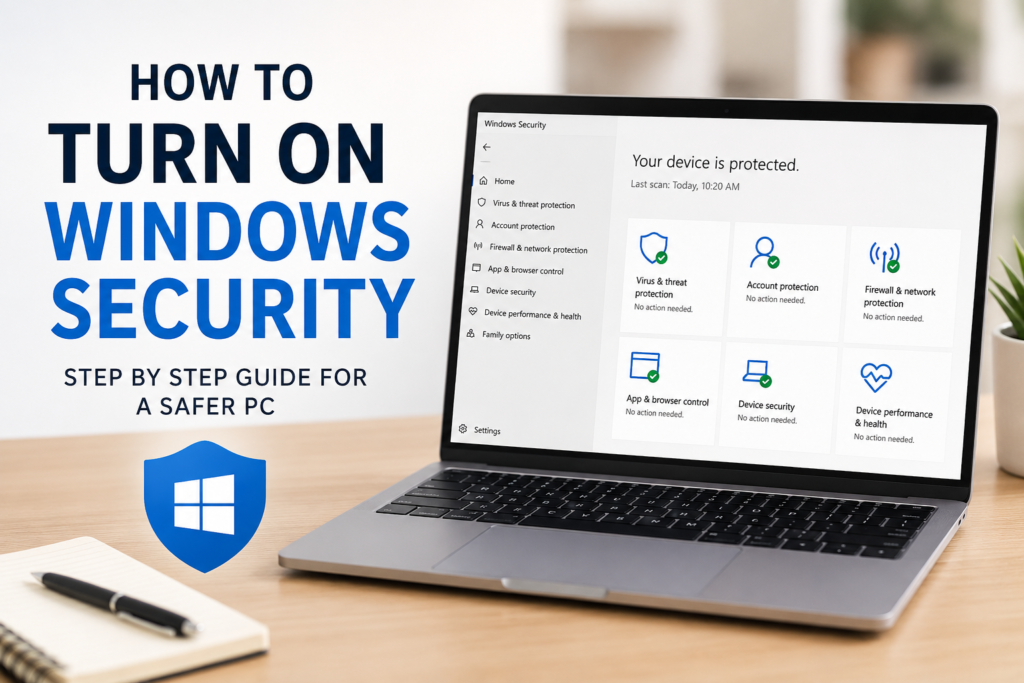
In this article, I will share how I turn on Windows Security, why it is important, and how I make sure every security feature is working properly.
What Is Windows Security
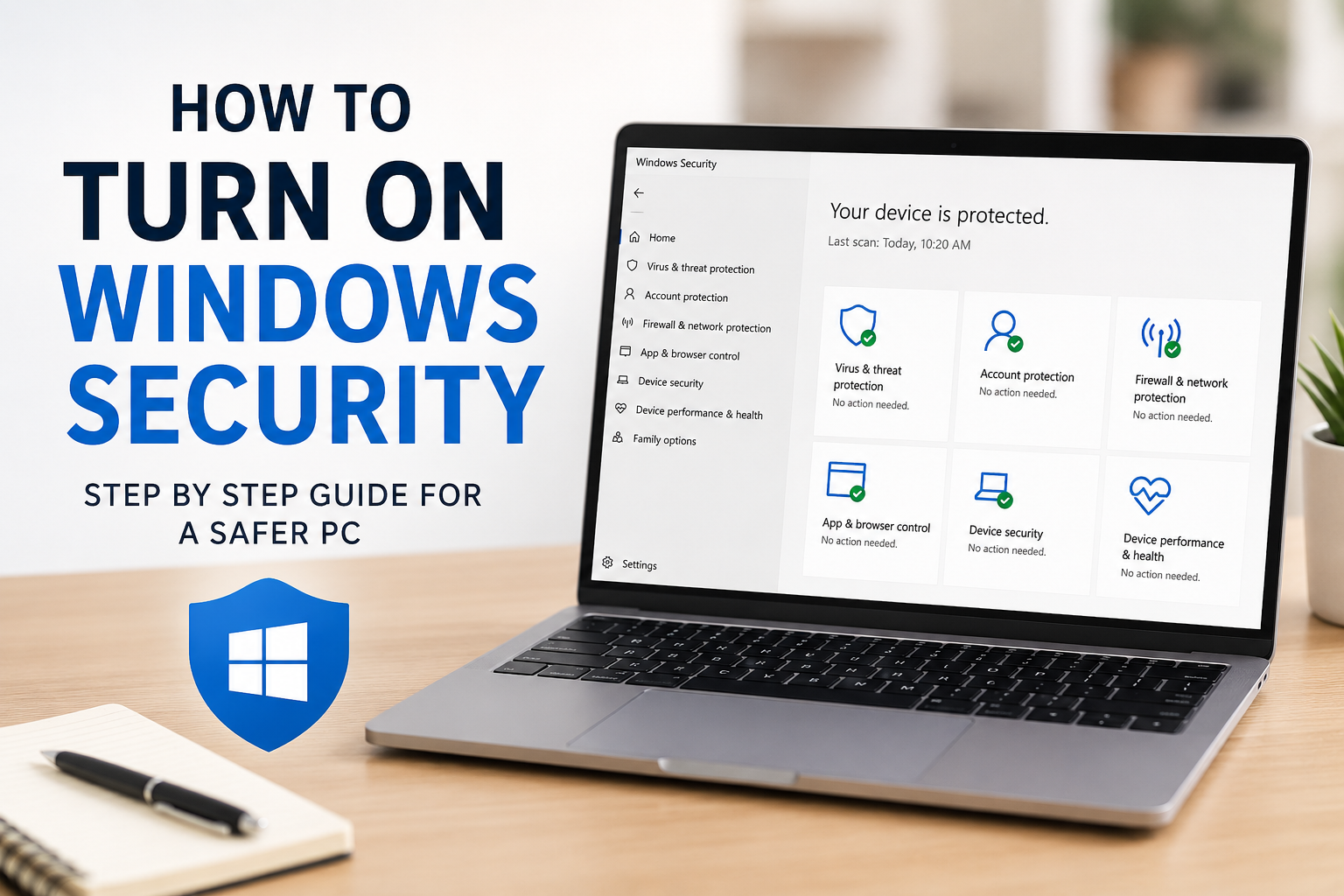
Windows Security is Microsoft’s built in security application that helps protect a computer from different types of threats. It combines antivirus protection, firewall settings, account protection, device security, and many other safety features into one place.
The best thing I like about Windows Security is that it works quietly in the background without slowing down my computer too much. It automatically checks files, downloads, and apps for suspicious activity while keeping my system protected all the time.
Why I Always Keep Windows Security Enabled
I never leave Windows Security disabled because doing so can expose my computer to harmful software. Even visiting trusted websites or downloading familiar files can sometimes become risky if my PC does not have active protection.
Keeping Windows Security turned on gives me several benefits.
It protects my computer from viruses.
It blocks malware before it causes damage.
It warns me about suspicious downloads.
It helps secure my Microsoft account.
It protects important files from ransomware attacks.
It monitors the health of my device.
Knowing these features are active gives me confidence whenever I browse the internet or install new software.
How I Open Windows Security
The process is very simple and only takes a few seconds.
First, I click the Start button.
Next, I type Windows Security into the search box.
After that, I click the Windows Security application from the search results.
Another easy method is opening the Settings app.
I click Privacy and Security.
Then I select Windows Security.
Finally, I click Open Windows Security.
Both methods take me to the same dashboard where I can manage every important security setting.
How I Turn On Virus and Threat Protection
Virus and Threat Protection is the first thing I check.
Inside Windows Security, I click Virus and Threat Protection.
If protection is already active, I see a message showing that my device is protected.
If it is turned off, I click Manage Settings.
Then I enable Real Time Protection.
This feature continuously scans files, folders, and applications while I use my computer. It helps stop viruses before they can infect my system.
I also keep Cloud Delivered Protection turned on because it allows Microsoft to detect new threats more quickly.
Automatic Sample Submission is another option I leave enabled since it helps improve virus detection.
How I Enable Firewall Protection
The firewall is another important layer of security.
From the Windows Security dashboard, I open Firewall and Network Protection.
Windows usually protects three different network profiles.
Domain Network
Private Network
Public Network
I make sure the firewall is enabled for every network. This helps block unauthorized access whenever I connect to the internet at home, at work, or while using public WiFi.
Whenever Windows asks for firewall permission for a trusted application, I carefully review the request before allowing access.
How I Turn On Account Protection
My Microsoft account contains important information, so I also check Account Protection.
Inside Windows Security, I select Account Protection.
If Windows recommends enabling Windows Hello, I complete the setup.
I also verify that my Microsoft account is connected correctly.
Using a PIN, fingerprint, or facial recognition makes my computer much safer than relying only on a password.
Device Security
Another section I never ignore is Device Security.
This page tells me whether my computer supports hardware based protection.
Many modern computers include security features like Secure Boot and TPM.
If these features are enabled, my system becomes much more resistant to advanced attacks.
Although not every computer supports every security feature, I always keep every available protection enabled.