Introduction
Keeping my personal files safe has become more important than ever. Every day I store important documents, family photos, office files, and personal information on my Windows computer. Losing this data or allowing someone else to access it without permission can create serious problems. That is why I always look for reliable security features that are already available in Windows. One of the best tools I have found is BitLocker.
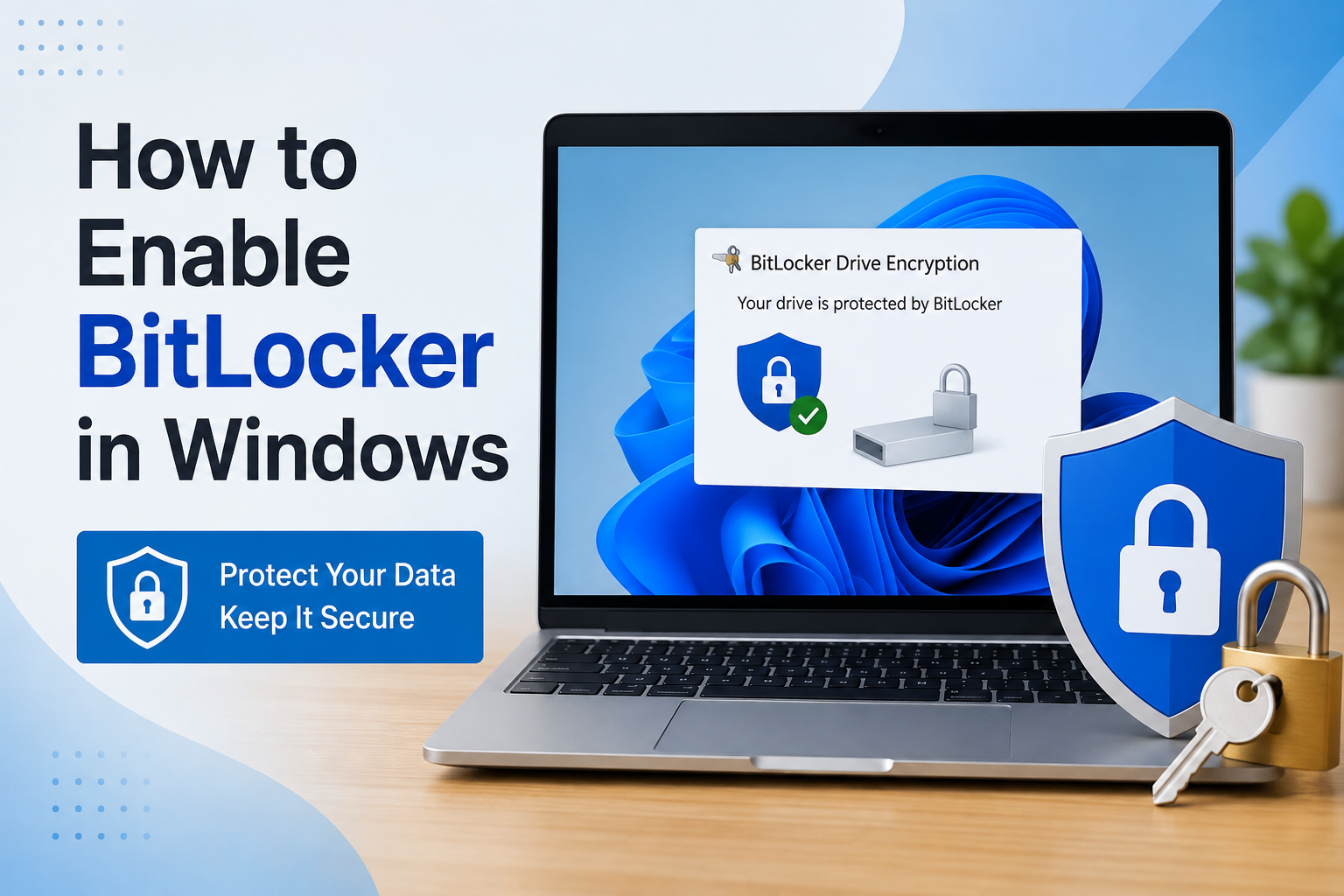
BitLocker is a built in drive encryption feature that protects the data stored on my computer. Even if someone removes the hard drive from my PC and connects it to another device, they still cannot read my files without the correct recovery key or password. This gives me confidence that my private information remains secure.
When I first heard about BitLocker, I thought enabling it would be difficult. After trying it myself, I realized the process is much easier than I expected. In this article I will explain how I enable BitLocker in Windows, what I check before turning it on, and why I believe every eligible Windows user should use this security feature.
What Is BitLocker
BitLocker is a security feature included with several editions of Windows. Its main purpose is to encrypt the data stored on my computer. Encryption changes my files into unreadable data that only authorized users can unlock.
This means that if my laptop is lost or stolen, my personal files remain protected. Without the correct authentication, nobody can access my documents, pictures, videos, or other important information.
I like BitLocker because it works quietly in the background. Once it is enabled, I can continue using my computer normally while enjoying an extra layer of protection.
Why I Use BitLocker
There are many reasons why I prefer using BitLocker on my Windows PC.
The biggest advantage is data protection. My files stay safe even if someone physically steals my computer.
Another reason is privacy. I often save passwords, work documents, and financial information on my laptop. Encrypting the drive makes me feel more secure.
BitLocker is also developed by Microsoft, which means it integrates perfectly with Windows. I do not have to install third party software or worry about compatibility issues.
I also appreciate that BitLocker does not slow down my computer noticeably. Modern computers are powerful enough to handle encryption with very little impact on performance.
Before Enabling BitLocker
Before I enable BitLocker, I always make sure my computer meets a few basic requirements.
First, I check my Windows edition. BitLocker is available in Windows Pro, Enterprise, and Education editions. If I am using Windows Home, the standard BitLocker feature may not be available.
Next, I make sure I have administrator access because changing security settings requires administrative permissions.
I also back up my important files before making any major security changes. Although enabling BitLocker is generally safe, having a backup always provides peace of mind.
Finally, I make sure my laptop battery is charged or my desktop computer is connected to a reliable power source. Interrupting the encryption process can create unnecessary problems.
How I Check If BitLocker Is Available
The easiest way I check for BitLocker is by opening File Explorer.
I right click on my system drive, usually the C drive, and select Manage BitLocker.
If the BitLocker management window opens, I know my computer supports the feature.
Another method is opening the Control Panel and searching for BitLocker Drive Encryption. This allows me to view the current status of all available drives.
How I Enable BitLocker in Windows
The process is surprisingly simple once everything is ready.
I begin by opening the Control Panel and selecting BitLocker Drive Encryption.
After the BitLocker window opens, I locate the drive I want to protect. Most of the time I enable encryption on my Windows system drive.
Next, I click Turn On BitLocker.
Windows performs a quick check to prepare the drive for encryption. This may take a few minutes depending on the computer.
After that, Windows asks me how I want to unlock the drive. I can choose to use my Microsoft account, a password, a smart card, or the Trusted Platform Module if my computer supports it.
I usually choose the option that works best for my setup while keeping security my highest priority.
Saving the Recovery Key
One of the most important steps during setup is saving the recovery key.
Windows gives me several options. I can save it to my Microsoft account, save it as a file, print it, or store it in another secure location.
I never skip this step because the recovery key can help me unlock my drive if I forget my password or if Windows detects unexpected hardware changes.
I always keep my recovery key somewhere safe but separate from the computer itself.
Choosing the Encryption Mode
Windows asks me how much of the drive I want to encrypt.
For a new computer, encrypting only the used space is usually faster.
For an older computer with existing files, I often choose to encrypt the entire drive because it provides complete protection for all stored data.
Windows also allows me to select the encryption mode. I normally keep the recommended option because it offers the best balance between security and compatibility.
Starting the Encryption Process
After reviewing all my settings, I click Start Encrypting.
The encryption process begins immediately.
The time required depends on several factors including the size of the drive, the amount of stored data, and the speed of my computer.
While encryption is running, I can continue using my PC for basic tasks, although I avoid heavy workloads until the process is complete.
Once finished, my drive is fully protected and BitLocker continues working automatically every time I start Windows.
How I Confirm That BitLocker Is Working
After the encryption process finishes, I always make sure everything is working correctly. I go back to the BitLocker Drive Encryption window in Control Panel and check the status of my drive. If I see that BitLocker is turned on, I know my data is now protected.
I can also restart my computer to ensure everything works normally. In most cases, I notice no difference in the way Windows starts or performs. BitLocker continues protecting my files in the background without interrupting my daily work.
How I Suspend BitLocker
Sometimes I need to update my computer’s BIOS or make hardware changes. Before doing that, I usually suspend BitLocker instead of turning it off completely.
To do this, I open the BitLocker management window, find the encrypted drive, and select Suspend Protection. This temporarily pauses the security feature while I make the necessary changes.
Once everything is finished, I simply resume BitLocker protection. This saves time because I do not have to encrypt the entire drive again.
How I Turn Off BitLocker
If I ever decide that I no longer need drive encryption, I can turn BitLocker off.
I open the BitLocker Drive Encryption settings and click Turn Off BitLocker. Windows then begins decrypting the drive. Depending on the size of the drive, this process may take some time.
During decryption, I keep my computer connected to power and avoid shutting it down. Once the process is complete, my files return to their normal unencrypted state.
Common Problems I Have Seen
Although BitLocker is easy to use, I have seen a few situations where people experience problems.
One common issue is discovering that BitLocker is unavailable. This usually happens because the computer is running Windows Home instead of Windows Pro, Enterprise, or Education.
Another issue is forgetting the recovery key. Without it, recovering access to an encrypted drive can become very difficult. That is why I always save the recovery key in multiple secure locations.
Some users also worry that enabling BitLocker will make their computer much slower. In my experience, modern computers handle BitLocker very well, and I rarely notice any performance difference during normal use.
Occasionally the encryption process may seem slow. This usually depends on the amount of data stored on the drive and the speed of the storage device. Being patient is often the best solution.
Tips I Follow When Using BitLocker
Over time, I have developed a few habits that help me use BitLocker safely.
I always keep a backup of important files on an external drive or cloud storage.
I never ignore the recovery key because it can save me from losing access to my data.
I make sure my Windows installation stays updated since security improvements are regularly included in Windows updates.
I also avoid interrupting the encryption or decryption process by keeping my computer connected to a reliable power source.
Finally, I only share my computer with trusted people because encryption is only one part of overall computer security.
Is BitLocker Worth Using
In my opinion, BitLocker is one of the best security features available in Windows. It is simple to enable, reliable, and built directly into the operating system.
I appreciate that I do not need expensive third party software to protect my files. Everything I need is already included with supported versions of Windows.
Whether I use my computer for school, work, business, or personal tasks, BitLocker gives me confidence that my private information remains secure even if my device is lost or stolen.
Frequently Asked Questions
Does BitLocker delete my files?
No. Enabling BitLocker does not delete my existing files. It simply encrypts the data already stored on the drive.
Can I use my computer while BitLocker is encrypting?
Yes. I can continue using my computer during encryption, although I prefer not to run heavy programs until the process finishes.
Is BitLocker free?
BitLocker is included with supported Windows editions such as Windows Pro, Enterprise, and Education, so I do not have to purchase separate encryption software.
Can I encrypt external drives?
Yes. BitLocker can also protect USB flash drives and external hard drives through the BitLocker To Go feature.
What happens if I forget my password?
If I have saved my recovery key, I can use it to unlock the drive and regain access to my files.
Final Thoughts
After using BitLocker for a long time, I genuinely believe it is one of the easiest ways to improve the security of a Windows computer. Cyber threats continue to grow, and protecting personal information has become more important than ever. Simply having a password on a Windows account is not enough if someone gains physical access to the hard drive. BitLocker adds another level of protection by encrypting everything stored on the drive.
I like that the setup process is straightforward and only takes a few steps. Once it is enabled, I hardly notice it because it works silently in the background. The peace of mind it provides is well worth the few minutes needed for setup.
If your Windows edition supports BitLocker, I strongly recommend enabling it as soon as possible. Just remember to save your recovery key in a secure location, keep regular backups of important files, and keep Windows updated. These simple habits, combined with BitLocker encryption, can significantly improve the safety of your personal and professional data. In my experience, enabling BitLocker is one of the smartest decisions any Windows user can make to protect valuable information.