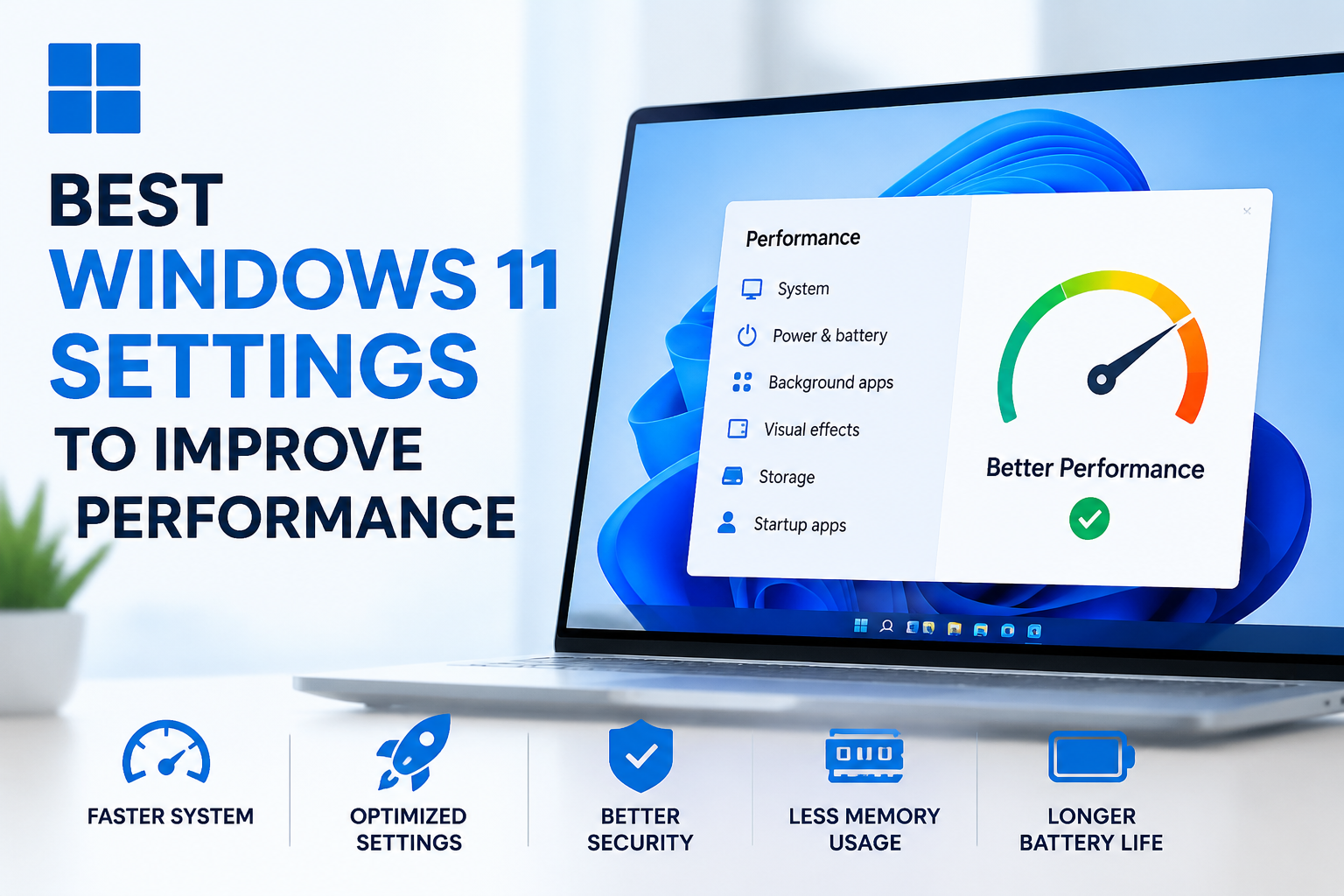
When I first started using Windows 11, I noticed that it looked modern and packed with useful features. However, after using it for a few weeks, my PC did not feel as fast as it did on the first day. Applications took longer to open, startup became slower, and multitasking was not as smooth as before. Instead of installing random optimization software, I decided to explore Windows 11 settings myself. Surprisingly, I found that a few simple changes made a huge difference.
The best part is that every setting I mention in this guide is built into Windows 11. You do not need third party software, and you do not need advanced technical knowledge. These are the settings I personally use to keep my computer running smoothly.
Turn Off Startup Apps
One of the biggest reasons Windows 11 becomes slow is because too many programs launch automatically when the computer starts. Many applications add themselves to the startup list without asking, and they continue running in the background.
I always check my startup apps after installing new software.
To do this, open Settings, then Apps, and select Startup.
Here, I disable every application that I do not need immediately after turning on my PC. For example, if I rarely use Spotify, Discord, or Adobe Creative Cloud right after startup, I simply switch them off.
This small adjustment noticeably reduces boot time and frees up system resources.
Change Power Mode
Windows 11 offers different power modes depending on whether you want better battery life or better performance.
If I am using a desktop computer or my laptop is plugged in, I always select the Best Performance option.
Open Settings.
Go to System.
Select Power and Battery.
Open Power Mode.
Choose Best Performance.
This allows Windows to use more system resources to deliver better speed instead of saving power.
Disable Unnecessary Visual Effects
Windows 11 includes animations, shadows, transparency, and other visual effects that look attractive but consume system resources.
On high end computers, these effects may not matter much. On budget or older systems, disabling them can make Windows feel more responsive.
I open Advanced System Settings.
Then I select Performance Settings.
Instead of letting Windows choose automatically, I select Adjust for Best Performance.
If I still want smoother fonts, I only enable Smooth Edges of Screen Fonts while keeping the rest disabled.
The desktop instantly feels faster when opening folders and switching between applications.
Turn Off Background Apps
Many applications continue working even when I am not actively using them.
These background apps consume memory, processor power, and battery life.
I regularly review installed applications and remove background permissions for programs that do not need to stay active.
This helps reduce unnecessary resource usage and keeps the system more responsive during daily tasks.
Keep Storage Clean
A nearly full drive can seriously affect Windows performance.
I always make sure my system drive has enough free space.
Windows 11 includes a built in Storage Sense feature that automatically removes temporary files, recycle bin items, and unnecessary downloads.
Open Settings.
Go to System.
Select Storage.
Turn on Storage Sense.
Once enabled, Windows handles much of the cleanup automatically, which saves time and helps maintain performance.
Disable Widgets if You Never Use Them
Widgets constantly refresh information such as weather, news, and sports updates.
Although they are useful for some users, I rarely use them.
Disabling Widgets reduces background activity and slightly improves memory usage.
Simply right click the taskbar.
Open Taskbar Settings.
Turn off Widgets.
It is a simple change that removes another unnecessary background feature.
Reduce Search Indexing
Windows Search indexes files to provide faster search results.
If you constantly work with thousands of files, indexing is useful.
However, if you only search occasionally like I do, reducing indexing locations can improve system performance.
Open Settings.
Go to Privacy and Security.
Select Searching Windows.
Choose Classic instead of Enhanced indexing if you do not need your entire drive indexed.
This reduces background disk activity and keeps the system running more efficiently.
Turn Off Transparency Effects
Transparency effects make Windows look elegant, but they also require extra graphics processing.
I personally prefer performance over appearance.
Go to Settings.
Open Personalization.
Select Colors.
Turn Transparency Effects off.
This small adjustment helps reduce GPU workload, especially on entry level hardware.
Pause OneDrive Sync if You Rarely Use It
Microsoft OneDrive is useful for backing up files, but if it is constantly syncing large folders, it can use processor power, memory, and internet bandwidth. I only keep it active when I need to back up important documents.
To pause syncing, click the OneDrive icon in the taskbar, open Settings, and choose to pause synchronization. If you do not use OneDrive at all, you can disable it from starting automatically with Windows. This helps reduce background activity and makes the system feel more responsive.
Keep Windows Updated
Many people ignore Windows updates because they worry about changes or restarts. I used to do the same, but I realized that Microsoft frequently releases updates that improve performance, fix bugs, and enhance security.
I regularly open Settings, select Windows Update, and install available updates. After the installation is complete, I restart my computer. These updates often include performance improvements that help Windows run more efficiently.
Remove Unused Applications
Over time, I install many programs just to test them. Months later, I realize I no longer use most of them.
Unused applications take up storage space and sometimes continue running background services without my knowledge.
I open Settings, go to Apps, then Installed Apps, and uninstall software I no longer need. Keeping only useful applications makes Windows cleaner and reduces unnecessary system load.
Optimize Your Storage Drive
If your computer uses an SSD, Windows automatically optimizes it. If you still use a traditional hard drive, regular optimization helps improve performance.
Search for Defragment and Optimize Drives in Windows Search.
Select your drive.
Click Optimize.
This process reorganizes files on hard drives for faster access. If you have an SSD, Windows performs optimization safely without traditional defragmentation.
Turn Off Xbox Game Bar if You Do Not Use It
Windows 11 includes Xbox Game Bar for recording gameplay and monitoring performance.
If I am not gaming, I prefer disabling it because it consumes background resources.
Go to Settings.
Open Gaming.
Select Xbox Game Bar.
Turn it off if you never use its features.
This frees a small amount of memory and reduces background processes.
Disable Notifications You Do Not Need
Frequent notifications interrupt my work and sometimes trigger unnecessary background activity.
I only keep notifications enabled for important applications like email or messaging.
Open Settings.
Select System.
Click Notifications.
Turn off notifications for apps that are not essential.
Besides improving focus, this also slightly reduces background resource usage.
Scan for Malware
A slow computer is sometimes caused by unwanted software instead of Windows itself.
I regularly run Windows Security because it is already built into Windows 11.
Open Windows Security.
Choose Virus and Threat Protection.
Run a Full Scan.
Removing malicious software often restores performance without making any other changes.
Restart Your Computer Regularly
Many people leave their computers running for weeks without restarting.
I used to do the same until I realized that memory usage gradually increased over time.
Restarting clears temporary memory, refreshes system processes, and often solves small performance issues.
Even if I use Sleep Mode every day, I make sure to restart my PC at least once every few days.
Adjust Privacy Settings
Some Windows features continuously collect diagnostic information or personalize services in the background.
Although these services are useful for some users, I disable features I do not need.
Go to Settings.
Select Privacy and Security.
Review each section carefully.
Turn off optional features that you never use.
Besides improving privacy, this can also reduce background system activity.
Use Task Manager to Monitor Performance
Whenever my computer feels slow, I do not guess the problem. Instead, I open Task Manager.
Press Ctrl Shift Esc.
The Performance tab shows processor, memory, storage, and graphics usage.
The Processes tab shows which applications consume the most resources.
This helps me identify programs that slow down my system so I can close or uninstall them.
Keep Desktop Icons Organized
Many users ignore this simple habit.
A desktop filled with hundreds of files and shortcuts can make Windows slightly slower during startup.
I keep only important shortcuts on my desktop and organize everything else into folders.
It keeps Windows cleaner and also makes my workspace easier to manage.
Final Thoughts
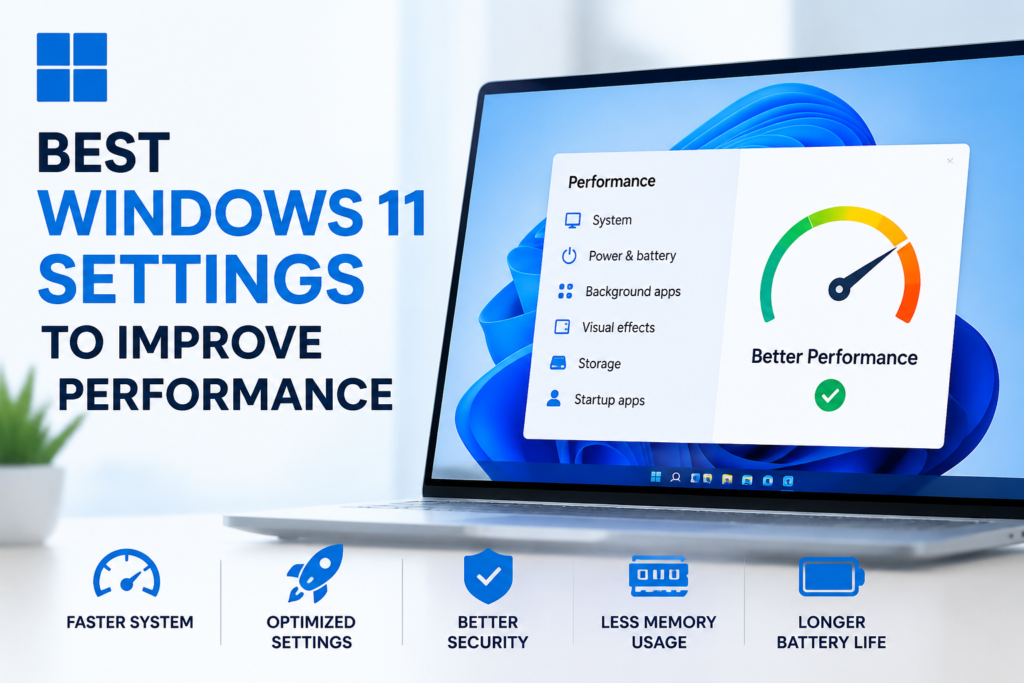
In my experience, improving Windows 11 performance does not require expensive software or advanced technical skills. Most of the biggest improvements come from changing built in settings and developing good maintenance habits.
I always start by disabling unnecessary startup applications, cleaning storage, updating Windows, uninstalling unused programs, and reducing visual effects. These simple adjustments make Windows faster, smoother, and more enjoyable to use every day.
The best part is that these settings are completely free. Whether you own a powerful gaming PC or an older laptop, spending just a few minutes optimizing Windows 11 can noticeably improve speed and responsiveness.
If you make these changes one by one, I believe you will notice the difference almost immediately. Instead of relying on third party optimization tools, let Windows work the way it was designed. A clean, well maintained system is often the fastest system, and these settings have helped me keep my Windows 11 computer running smoothly for a long time.