If you have been using Windows 11 for a while, you may have noticed that your storage keeps filling up even when you are not downloading large files every day. I have experienced the same problem many times. At first, I thought I needed to buy a larger SSD, but after spending some time exploring Windows 11, I realized that there are many simple ways to recover a surprising amount of storage space without spending any money.
Keeping enough free disk space is important because it helps Windows run faster, install updates smoothly, and improves overall system performance. When my computer starts showing low storage warnings, I always take a few minutes to clean unnecessary files before thinking about upgrading my storage.
In this article, I will share the methods I personally use to free up disk space on Windows 11. These tips are beginner friendly, safe, and do not require any technical knowledge.
Check What Is Using Your Storage
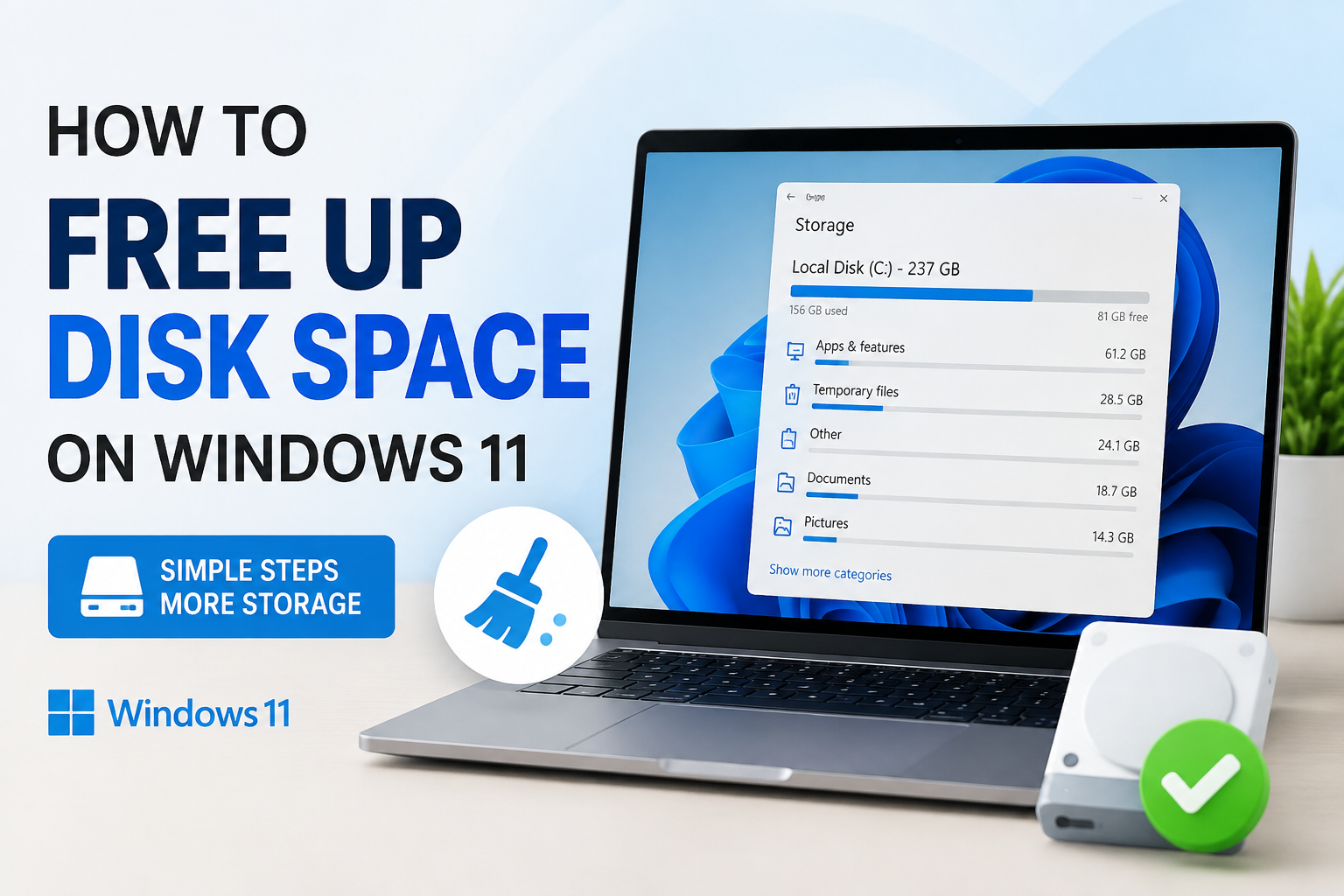
The first thing I always do is check which files are taking the most space. Windows 11 has a built in storage analyzer that makes this very easy.
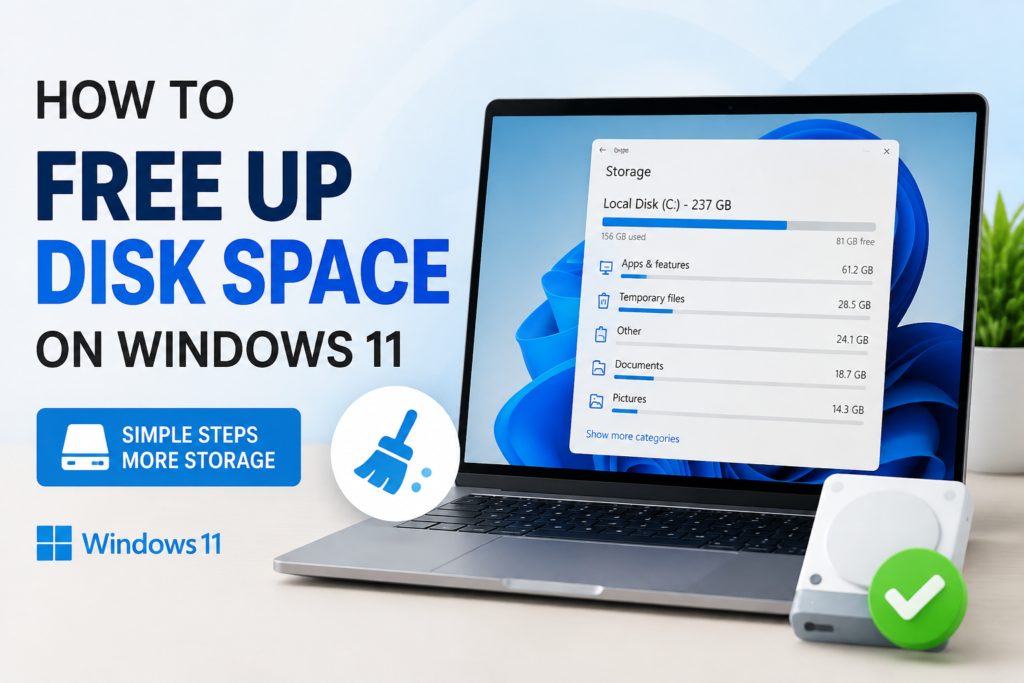
I open Settings and then go to System followed by Storage. Within a few seconds Windows shows me how my storage is being used. I can see categories such as Apps, Temporary Files, Documents, Pictures, Videos, and Other Files.
This helps me understand where the biggest problem is instead of deleting files randomly.
Delete Temporary Files
Temporary files are created every day while using Windows. These files help applications perform certain tasks, but once those tasks are completed, many temporary files become useless.
To remove them, I open Settings, go to System, then Storage, and select Temporary Files.
Windows scans my computer and lists different types of temporary files. I carefully review the list before deleting anything. Usually I remove temporary internet files, delivery optimization files, thumbnail cache, and Windows update cleanup files.
After cleaning these files, I often recover several gigabytes of storage.
Empty the Recycle Bin
This is one of the easiest things to forget.
Whenever I delete files, they are not immediately removed from my computer. Instead, they stay inside the Recycle Bin until I empty it.
Sometimes I find several gigabytes of deleted videos, photos, or documents sitting there.
I simply right click on the Recycle Bin icon and choose Empty Recycle Bin. It only takes a few seconds but can instantly free valuable disk space.
Turn On Storage Sense
One of my favorite Windows 11 features is Storage Sense.
Storage Sense automatically removes unnecessary files whenever my computer starts running low on storage.
To enable it, I open Settings, select System, choose Storage, and turn on Storage Sense.
I also customize its settings so Windows automatically empties the Recycle Bin after a certain number of days and removes temporary files that are no longer needed.
Since enabling this feature, I rarely have to perform manual cleanup.
Remove Applications I No Longer Use
Over time I install many applications just to test them. After using them once or twice, I completely forget about them.
These unused programs continue occupying valuable storage.
I visit Settings, open Apps, then Installed Apps.
I sort the list by size and carefully review every application. Whenever I find software I have not used for months, I uninstall it.
I make sure not to remove important system applications or programs that I still need for work.
Removing old software not only creates more free space but also keeps Windows cleaner.
Clean the Downloads Folder
The Downloads folder often becomes the biggest storage hog on my computer.
Every downloaded installer, PDF, image, video, or ZIP file usually stays there forever unless I manually delete it.
Every few weeks I open the Downloads folder and organize everything.
Files I want to keep are moved into their proper folders.
Files I no longer need are deleted permanently.
This simple habit has helped me recover dozens of gigabytes over time.
Delete Large Videos
Videos consume much more storage than most people realize.
Screen recordings, downloaded movies, gameplay recordings, and old projects quickly fill an SSD.
I regularly check my Videos folder and remove files that I no longer watch.
If I want to keep important videos, I move them to an external hard drive or cloud storage instead of keeping everything on my main Windows drive.
Move Files to Cloud Storage
Cloud storage has become one of my favorite ways to save disk space.
Instead of storing every document and photo locally, I upload important files to cloud services.
After confirming everything is uploaded successfully, I remove the local copies that are no longer necessary.
This allows me to keep my computer clean while still having access to my files whenever I need them.
Delete Duplicate Files
Duplicate files are surprisingly common.
Sometimes I accidentally download the same file multiple times.
I also end up with several copies of the same photos or documents.
Whenever I organize my storage, I look for duplicate files and remove unnecessary copies.
Although each duplicate may not be very large, together they can consume several gigabytes.
Remove Old Windows Update Files
Windows 11 stores files from previous updates so users can roll back if needed.
While this can be useful, older update files often become unnecessary after the system has been running normally for some time.
Using Disk Cleanup or Temporary Files, I safely remove old Windows update files.
This often gives me several additional gigabytes of free space.
Clear Browser Cache
Every web browser stores cached images, videos, and website data.
After months of browsing, this cache becomes surprisingly large.
I occasionally clear my browser cache through the browser settings.
Besides recovering storage, this also helps solve loading issues on certain websites.
Organize Documents
Many people keep years of old documents on their computer without realizing how much space they occupy.
I review my Documents folder regularly.
Old projects, duplicate reports, outdated presentations, and unnecessary files are either archived or deleted.
Keeping everything organized makes it much easier to find important documents while saving storage.
Use Disk Cleanup
Although Windows 11 has newer storage management tools, Disk Cleanup is still very useful. I use it whenever I want to perform a deeper cleanup.
I simply search for Disk Cleanup from the Start menu and open it.
After selecting my Windows drive, the tool scans for unnecessary files. I usually remove temporary files, downloaded program files, recycle bin contents, thumbnails, and old update files.
It is one of the fastest ways to recover storage without affecting personal files.
Compress Large Files
Some files are important, but I do not need to access them every day.
For these files, I use the built in ZIP compression feature.
I simply right click the folder and create a compressed archive.
This reduces the storage required while allowing me to keep the files safely on my computer.
This method works especially well for old projects, documents, and backups.
Move Large Files to an External Drive
If my internal SSD is almost full, I move large files to an external hard drive.
Old videos, photos, game recordings, and completed work projects rarely need to stay on my main drive.
Keeping them on external storage gives me much more free space while still allowing me to access them whenever necessary.
External drives are also useful for creating backups of important data.
Remove Unused Language Packs
Windows sometimes installs additional language packs that I never use.
I open the language settings and remove any languages that I no longer need.
Although this does not free a massive amount of storage, every little bit helps when storage space is limited.
Disable Hibernation if You Never Use It
Many people never use the Hibernate feature.
Windows reserves a large hibernation file that can consume several gigabytes depending on the amount of installed memory.
Since I only use Sleep or Shut Down, I disable hibernation using Command Prompt with administrator privileges.
This instantly removes the hibernation file and gives me extra storage.
If you regularly use Hibernate, then you should leave this feature enabled.
Manage OneDrive Files
If you use OneDrive, Windows allows files to stay online without occupying local storage.
I enable the option that keeps files online until I actually need them.
Whenever I open a file, Windows downloads it automatically.
After I finish using it, Windows can return it to online only status.
This keeps my important files available while saving local disk space.
Delete Old Restore Points
System Restore is useful because it allows Windows to recover from serious problems.
However, old restore points can consume a large amount of storage.
I occasionally remove older restore points while keeping the most recent one.
This gives me additional free space without completely disabling System Restore.
Uninstall Games You No Longer Play
Modern games are becoming incredibly large.
Some games easily require more than one hundred gigabytes of storage.
Whenever I finish playing a game and know I will not return to it anytime soon, I uninstall it.
If I want to play again later, I can simply reinstall it.
This single habit has probably saved me more storage than any other method.
Scan for Large Files
Sometimes I forget where my biggest files are stored.
I search through my computer and sort files by size.
This quickly reveals large ISO files, video recordings, installation packages, and backup archives that I no longer need.
Deleting only a few large files can free an impressive amount of storage.
Keep the Desktop Organized
Many people save everything on the desktop.
Over time the desktop becomes filled with images, installers, videos, documents, and folders.
I always move important files into organized folders and remove unnecessary items from the desktop.
This keeps my computer cleaner and makes it easier to find what I need.
Avoid Downloading Duplicate Installers
Whenever I download software updates, I often end up keeping multiple installer files.
Older installers usually become useless after the latest version is installed.
I regularly remove these installation files because they quietly consume storage over time.
Restart Your Computer Regularly
Restarting does not directly free storage, but it clears temporary system files that remain in memory and allows Windows to complete cleanup tasks.
I usually restart my computer after performing a large cleanup session.
It helps Windows run more smoothly and sometimes completes the removal of temporary files that were previously in use.
Create a Monthly Cleanup Routine
The biggest lesson I have learned is that storage management should become a habit instead of a one time task.
Once every month I spend about fifteen minutes checking my storage.
I empty the Recycle Bin, clean temporary files, organize downloads, uninstall unused software, and move old files to external storage.
Because I do this regularly, my Windows 11 computer stays fast throughout the year.
I never have to deal with sudden low storage warnings or failed Windows updates.
Common Mistakes to Avoid
While cleaning your computer, there are a few mistakes I recommend avoiding.
Do not delete files if you are unsure about their purpose.
Do not remove folders inside the Windows directory manually.
Avoid using unknown cleaning software that promises unrealistic performance improvements.
Always double check before permanently deleting personal photos, videos, or documents.
If possible, create a backup before making major changes to your storage.
Being careful is much better than trying to recover important files later.
Final Thoughts
Freeing up disk space on Windows 11 is much easier than most people think. I have used these methods for years, and they have helped me keep my computer clean, fast, and responsive without spending money on additional storage.
The biggest improvement comes from building good habits. I regularly clean temporary files, empty the Recycle Bin, uninstall applications I no longer use, organize my downloads, remove duplicate files, and move large files to cloud or external storage. These simple steps keep my SSD healthy and ensure Windows has enough room for updates and daily tasks.
If your Windows 11 PC feels slow or keeps showing low storage notifications, I recommend trying these methods one by one. You do not need advanced technical knowledge, and most of the cleanup can be completed in less than thirty minutes. After following these tips, you will likely notice more available storage, smoother performance, and a much more organized computer.