If you spend several hours every day using your computer, switching to Dark Mode is one of the easiest changes you can make. I started using Dark Mode in Windows 11 because I wanted a cleaner desktop and a more comfortable viewing experience, especially during the evening. After using it for a long time, I realized it not only looks modern but also helps reduce eye strain in low light environments.
Windows 11 comes with a built in Dark Mode that changes the appearance of the operating system, including the Start Menu, Taskbar, Settings, File Explorer, and many supported applications. The best part is that enabling it only takes a few clicks and you do not need to install any third party software.
In this guide, I will explain everything I know about enabling Dark Mode in Windows 11, why it is useful, and how you can customize it according to your preferences.
What Is Dark Mode in Windows 11
Dark Mode is a display theme that replaces bright white backgrounds with darker colors. Instead of showing white windows and menus, Windows uses black and dark gray shades across the interface.
This feature is designed to create a more comfortable viewing experience. Many people prefer it because it looks stylish and can make working on a computer feel less tiring during long sessions.
Windows 11 offers a polished Dark Mode that works across many built in apps. Microsoft has improved it compared to previous Windows versions, making it more consistent throughout the operating system.
Benefits of Using Dark Mode
Before enabling Dark Mode, it helps to understand why so many users prefer it.
More Comfortable at Night
Bright screens can feel uncomfortable in dark rooms. Dark Mode reduces the amount of bright light coming from the screen, making late night work more pleasant.
Modern Appearance
One of the first things I noticed was how professional Windows 11 looked after switching to Dark Mode. The darker interface gives the desktop a premium appearance.
Better Focus
Bright backgrounds sometimes distract me when I am writing or editing documents. Dark Mode helps me focus more on the content instead of the interface.
Reduced Eye Fatigue
Although Dark Mode does not completely prevent eye strain, many users find it more comfortable during extended computer sessions, especially in low light conditions.
Battery Savings on OLED Displays
If your laptop has an OLED display, Dark Mode may help reduce battery consumption because black pixels require less power than bright ones.
How to Enable Dark Mode in Windows 11
Enabling Dark Mode is very simple.
Follow these steps.
Open Settings
Click the Start button.
Select Settings.
You can also press Windows + I on your keyboard to open Settings instantly.
Open Personalization
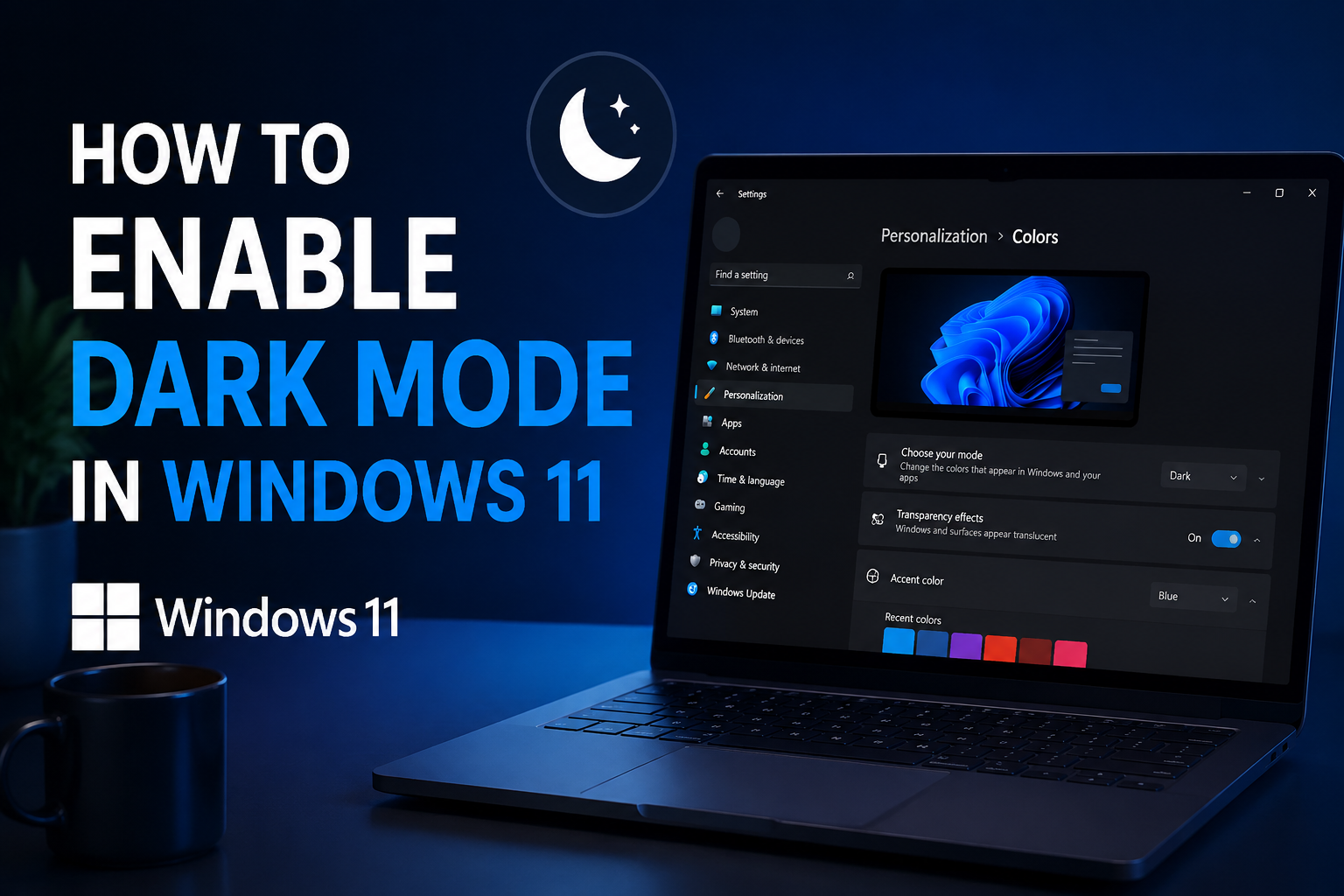
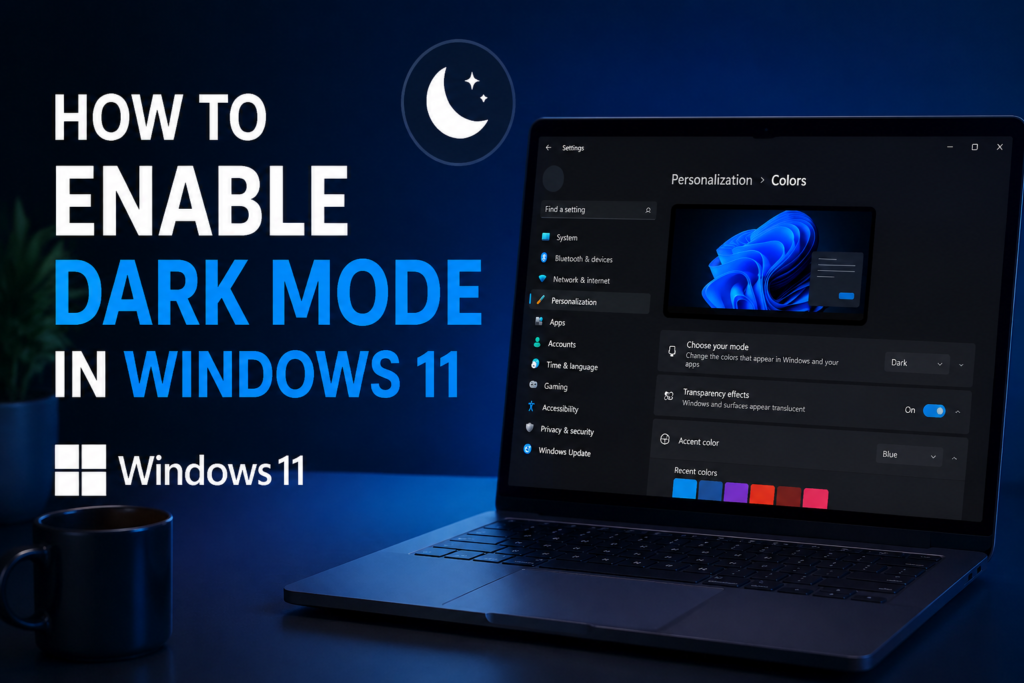
From the left sidebar, click Personalization.
This section allows you to customize your desktop appearance.
Select Colors
Click on Colors.
Here you will find several appearance options.
Choose Dark Mode
Look for the option called Choose your mode.
Click the menu and select Dark.
Windows will immediately switch to Dark Mode without restarting your computer.
Within a few seconds, you will notice changes across the operating system including the Taskbar, Start Menu, Settings, and File Explorer.
Enable Dark Mode for Apps Only
Some users like having a dark application interface while keeping Windows itself light.
Windows 11 allows this customization.
Go to:
Settings
Personalization
Colors
Choose Custom under Choose your mode.
Now select:
Default Windows mode as Light
Default app mode as Dark
This gives you a combination where Windows menus stay bright while supported applications use Dark Mode.
Enable Dark Windows with Light Apps
You can also reverse the combination.
Choose Custom.
Set:
Default Windows mode as Dark
Default app mode as Light
This option is useful if you like a dark desktop but prefer reading documents in bright applications.
Change Accent Colors
After enabling Dark Mode, I usually personalize Windows even further by changing the accent color.
Open:
Settings
Personalization
Colors
Choose an accent color that matches your style.
Popular choices include blue, purple, green, and orange.
Accent colors appear in different parts of Windows including buttons and menus.
Enable Transparency Effects
Transparency effects make Windows look smoother and more modern.
Go to:
Settings
Personalization
Colors
Turn on Transparency effects.
This gives windows and menus a subtle glass like appearance.
Dark Mode in Microsoft Edge
After enabling Windows Dark Mode, I also recommend switching Microsoft Edge to Dark Mode.
Open Microsoft Edge.
Click the three dots in the top right corner.
Open Settings.
Go to Appearance.
Choose the Dark theme.
Now both Windows and your browser will have a consistent appearance.
Enable Dark Mode in Microsoft Office
Many Microsoft Office applications support Dark Mode.
Open Word or Excel.
Go to File.
Choose Account.
Select Office Theme.
Pick Black or Dark Gray.
Now your Office applications will match the rest of Windows.
Dark Mode for File Explorer
One thing I appreciate about Windows 11 is that File Explorer automatically switches to Dark Mode when the system theme changes.
Folders, menus, navigation panels, and context menus all receive a dark appearance.
There is no separate setting required.
Schedule Dark Mode
Windows 11 does not include automatic scheduling for Dark Mode by default.
However, you can manually switch between Light and Dark themes whenever you like.
Some users also use Microsoft Power Automate or trusted third party utilities to automatically switch themes based on time.
Troubleshooting Dark Mode
Sometimes Dark Mode does not work properly.
Here are a few solutions.
Restart Windows Explorer
Press Ctrl Shift Esc.
Open Task Manager.
Find Windows Explorer.
Right click it.
Choose Restart.
This often refreshes the interface.
Restart Your Computer
A simple restart can fix many display related issues.
Update Windows
Open:
Settings
Windows Update
Install any available updates.
Microsoft regularly fixes appearance related bugs.
Update Graphics Drivers
Outdated graphics drivers can occasionally cause display problems.
Keeping your drivers updated helps Windows perform better.
Which Apps Support Dark Mode
Many popular applications now support Dark Mode.
These include Microsoft Edge
Microsoft Office
Notepad
Paint
Photos
Windows Terminal
Media Player
Many third party browsers
Most modern messaging applications
Many development tools
Several PDF readers
More software developers continue adding Dark Mode support every year.
Does Dark Mode Improve Performance
Many people ask whether Dark Mode makes Windows faster.
From my experience, the performance difference is extremely small.
Dark Mode mainly changes the visual appearance.
However, laptops with OLED displays may experience slightly better battery life because darker pixels consume less energy.
Does Dark Mode Reduce Eye Strain
Dark Mode can feel more comfortable when using a computer in dim lighting.
However, it is not a complete solution for eye fatigue.
I also recommend following these habits.
Adjust screen brightness according to your surroundings.
Take regular breaks.
Blink more often.
Keep the monitor at a comfortable distance.
Use Night Light during evening hours.
These habits make a noticeable difference during long work sessions.
Light Mode vs Dark Mode
Both themes have their own advantages.
Light Mode is often easier to read in bright environments and works well outdoors.
Dark Mode feels more relaxing during nighttime use and gives Windows 11 a modern appearance.
I personally switch to Dark Mode because I spend many hours writing, browsing, and managing files every day. It makes my workspace feel cleaner and easier on my eyes.
Frequently Asked Questions
Is Dark Mode available in every version of Windows 11?
Yes. Dark Mode is included in all standard editions of Windows 11.
Can I switch back to Light Mode?
Yes. Simply return to the Colors settings and choose Light instead of Dark.
Does Dark Mode affect all applications?
No. Only applications that support Windows themes will automatically switch. Some older programs may continue using their original appearance.
Is Dark Mode safe for daily use?
Yes. It is completely safe and designed by Microsoft as an official Windows feature.
Does Dark Mode save battery?
On OLED displays it may reduce battery consumption slightly. On standard LCD screens the difference is usually minimal.
Final Thoughts
Enabling Dark Mode in Windows 11 is one of the first settings I recommend changing after installing the operating system. It only takes a minute, yet it completely transforms the look and feel of Windows. The darker interface appears cleaner, more professional, and more comfortable for long hours of work, especially during the evening.
I like using Dark Mode because it creates a distraction free workspace while giving Windows 11 a sleek modern appearance. Whether you are a student, office worker, gamer, or casual user, this built in feature is worth trying. If you have never enabled it before, open the Settings app today, switch to Dark Mode, and experience the refreshed look of Windows 11 for yourself.