Introduction
Whenever I turn on my Windows 11 computer, I expect it to boot quickly and be ready for work within a few moments. However, over time I noticed that my PC started taking longer to reach the desktop. Even after Windows loaded, everything felt slow for a few minutes. Applications opened late, the taskbar became unresponsive, and my overall experience was frustrating.
After doing some research, I discovered that the biggest reason behind this issue was startup programs. Many applications automatically add themselves to the startup list without asking for permission. Every time I started my computer, these programs launched in the background, consuming memory, processor power, and storage resources.
The good news is that removing unnecessary startup programs in Windows 11 is very simple. You do not need any technical knowledge or expensive software. Windows already provides built in tools that make the process easy.
In this guide, I will explain everything I have learned about startup programs and show you how I remove them safely to make Windows 11 faster.
What Are Startup Programs
Startup programs are applications that automatically open whenever Windows starts.
Some of these programs are useful. For example, antivirus software should start automatically to protect your computer from threats. Cloud storage applications like OneDrive can also be helpful because they begin syncing files immediately.
However, many other programs do not need to launch every time your computer starts. Music players, chat applications, game launchers, editing software, and update assistants often run in the background even when you do not use them daily.
The more startup programs your computer has, the slower Windows becomes during boot.
Why I Remove Startup Programs
I always try to keep my computer as clean and efficient as possible. Removing unnecessary startup apps provides several benefits.
My computer starts much faster.
Windows becomes responsive more quickly.
More RAM is available for important tasks.
Background CPU usage decreases.
Battery life improves on laptops.
The system feels smoother while multitasking.
Instead of allowing every installed application to run automatically, I only keep the programs that I truly need.
How to Check Startup Programs Using Settings
This is the easiest method and the one I use most often.
First, I open the Settings app by pressing Windows and I together.
Next, I select Apps from the left menu.
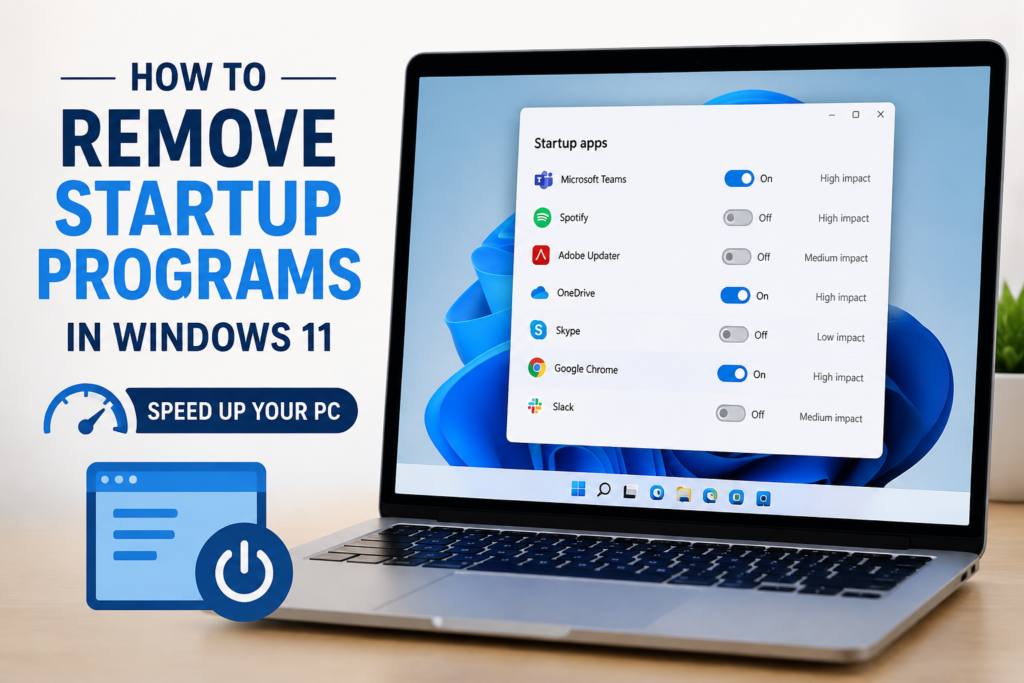
After that, I click Startup.
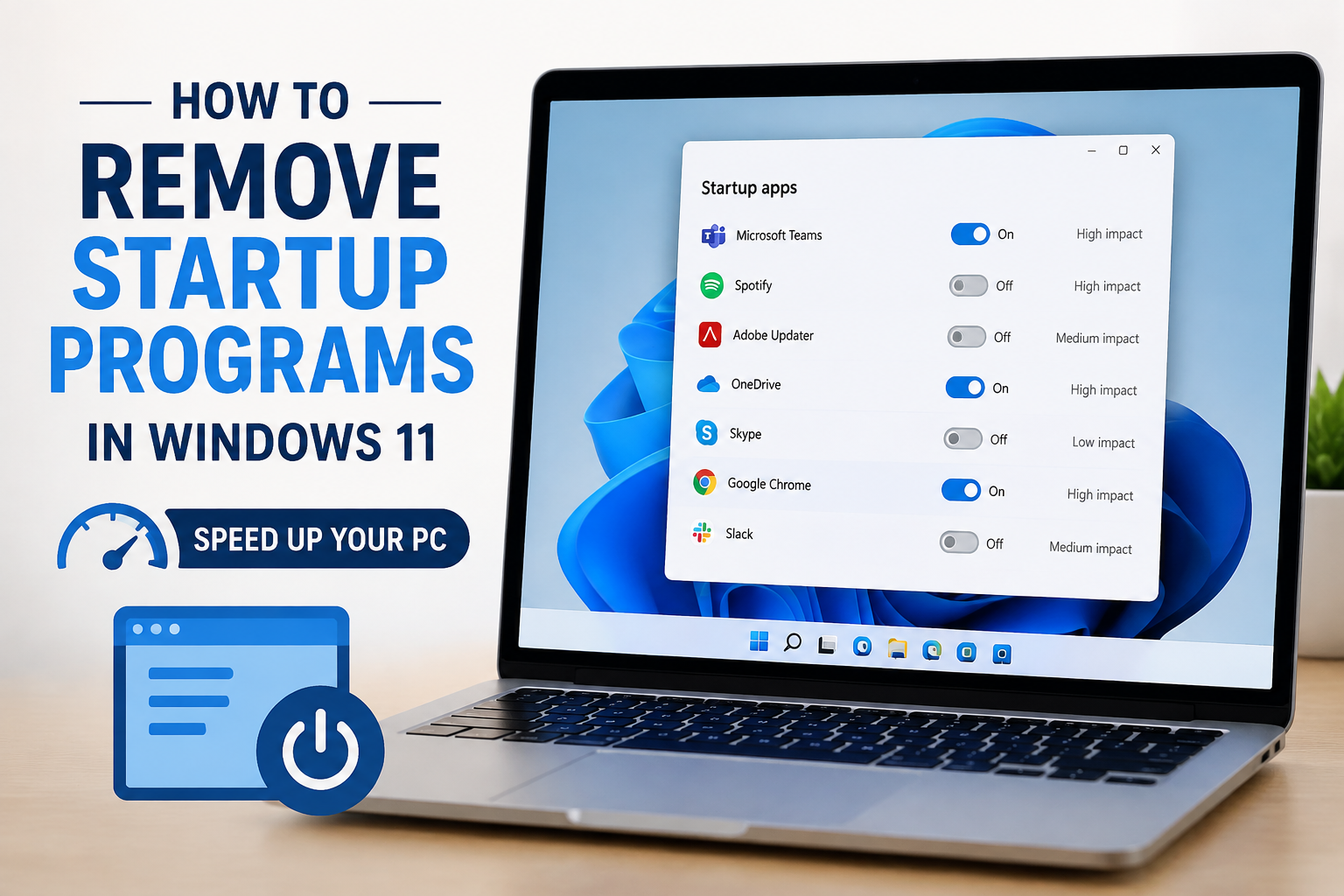
Windows displays a complete list of applications that can run automatically during startup.
Each application has a simple switch beside it. If I do not want an application to launch every time I start my computer, I simply turn the switch off.
The change takes effect the next time Windows starts.
This method is quick, safe, and perfect for beginners.
How to Remove Startup Programs Using Task Manager
Task Manager provides even more information about startup applications.
I press Ctrl Shift Esc to open Task Manager.
If it opens in compact mode, I click More Details.
Next, I choose Startup Apps from the left side.
Here I can see every startup application along with useful information such as its status and startup impact.
Applications marked with High startup impact usually slow down the boot process the most.
To disable one, I simply right click the application and choose Disable.
The application remains installed on my computer, but it no longer starts automatically when Windows boots.
This is one of my favorite methods because I can quickly identify which apps are slowing down my PC.
Disable Startup Apps from the Application Itself
Many programs include their own startup settings.
For example, messaging apps, music players, and cloud storage applications often contain an option called Start with Windows or Launch at Startup.
Whenever I install new software, I always check its settings and disable automatic startup if I do not need it.
Doing this prevents unnecessary applications from adding themselves to the startup list.
Which Startup Programs Should Stay Enabled
Not every startup application should be disabled.
I always leave security related software enabled because it protects my computer immediately after startup.
Some examples include antivirus software.
Windows Security services.
Hardware drivers.
Touchpad software for laptops.
Graphics drivers.
Audio management software.
These applications help Windows function correctly.
Disabling them may reduce functionality or create problems.
Programs I Usually Disable
Every user has different needs, but there are several applications I rarely allow to start automatically.
Music players.
Video editing software.
Game launchers.
Streaming applications.
Chat programs that I rarely use.
PDF readers.
Printer utilities.
Update assistants.
Shopping applications.
Weather applications.
These programs can always be opened manually whenever I need them.
How Startup Programs Affect Performance
Every startup application uses computer resources.
When multiple applications launch together, they compete for memory, processor time, and disk access.
This causes slower boot times.
Longer waiting periods.
Reduced responsiveness.
Higher RAM usage.
Increased CPU activity.
More battery consumption.
After removing unnecessary startup programs, I noticed a significant improvement in my computer’s speed. Windows became usable almost immediately after reaching the desktop.
Common Mistakes to Avoid
One mistake I made in the past was disabling everything without understanding what each application did.
This is not recommended.
Some startup services are necessary for hardware components and security features.
Before disabling anything unfamiliar, I search its name online or read its description.
Another mistake is installing too many optimization tools. Windows 11 already includes everything needed to manage startup applications.
Using third party software is usually unnecessary.
Additional Ways to Improve Startup Speed
Removing startup applications is only one part of improving Windows performance.
I also keep Windows updated regularly.
I uninstall programs that I no longer use.
I delete temporary files.
I free up storage space.
I restart my computer regularly.
I keep enough free disk space available.
These simple habits help Windows remain fast over time.
How Often I Check Startup Programs
I make it a habit to review my startup list every month.
Many applications quietly add themselves after updates.
By checking regularly, I prevent unnecessary software from slowing down my computer again.
It only takes a few minutes, but it saves a lot of frustration later.
Signs You Have Too Many Startup Programs
If you notice any of these problems, your startup list may be too crowded.
Windows takes several minutes to become usable.
The hard drive remains active for a long time after startup.
Fans spin loudly immediately after booting.
Programs respond slowly during the first few minutes.
Memory usage stays high without opening any applications.
The taskbar freezes after login.
If these symptoms sound familiar, reviewing startup applications should be one of the first troubleshooting steps.
My Personal Recommendation
From my experience, removing unnecessary startup programs is one of the easiest ways to speed up Windows 11 without spending any money.
The process is safe, beginner friendly, and only takes a few minutes. I always recommend starting with applications that have a high startup impact and that I do not use every day.
Instead of disabling everything, I carefully choose which programs truly need to run automatically. This balanced approach keeps my computer secure while improving overall performance.
Conclusion
Windows 11 is designed to be fast, but too many startup programs can gradually slow down even a powerful computer. I have personally found that reviewing startup applications regularly keeps my system responsive and reduces boot time significantly.
Whether you use the Settings app, Task Manager, or the application’s own options, removing unnecessary startup programs is simple and effective. You do not need advanced technical skills or paid software to enjoy a faster computer.
If you spend just a few minutes cleaning your startup list, you will likely notice quicker boot times, smoother multitasking, better memory usage, and an overall improved Windows 11 experience. Making this small change has become part of my regular PC maintenance routine, and it continues to help my computer perform at its best.
Does Disabling Startup Programs Delete Them
One question I hear quite often is whether disabling a startup program removes it from the computer. The answer is no.
When I disable a startup application, Windows simply prevents it from launching automatically during startup. The program stays installed and works exactly the same whenever I decide to open it manually.
For example, if I disable Spotify from startup, I can still open Spotify anytime. The only difference is that it will not consume system resources immediately after Windows starts.
This makes disabling startup programs completely safe for most applications.
How to Re Enable a Startup Program
Sometimes I change my mind and want an application to start automatically again.
Windows makes this very easy.
I simply open Settings.
Go to Apps.
Open Startup.
Find the application.
Turn the switch back on.
I can also use Task Manager by selecting the disabled application and clicking Enable.
Nothing complicated is required.
Startup Impact Explained
When I open Task Manager, Windows shows a Startup Impact column.
This feature helps me decide which applications should be disabled first.
Low impact means the application uses very few resources during startup.
Medium impact means it has a noticeable effect but usually does not slow the computer significantly.
High impact means the application consumes considerable CPU time or disk activity during boot.
Whenever I want faster startup times, I focus on disabling applications marked with High impact if I do not actually need them.
Why Too Many Startup Apps Slow Down Windows
Many people think a powerful computer never slows down.
That is not always true.
Even modern computers with fast processors and plenty of RAM can become sluggish if dozens of applications launch simultaneously.
Every startup program needs memory.
Every startup program performs background tasks.
Every startup program checks for updates.
Every startup program communicates with Windows.
When all of these happen together, the computer becomes busy before you even begin working.
Reducing startup applications allows Windows to focus on loading essential services first.
How I Decide Which Programs to Disable
Whenever I install new software, I ask myself one simple question.
Do I really need this application running every single time I turn on my computer?
If the answer is no, I disable it.
For example, I do not edit videos every day.
I do not play games every morning.
I do not open PDF editing software during every work session.
There is no reason for these programs to start automatically.
Keeping only the essential applications running saves both time and computer resources.
Benefits I Noticed After Cleaning Startup Programs
The improvements became obvious almost immediately.
My desktop appeared much faster.
Applications opened without delay.
The taskbar stopped freezing after login.
File Explorer became responsive.
My laptop battery lasted longer.
The cooling fan became quieter.
Background memory usage decreased.
These changes may sound small individually, but together they create a much smoother Windows experience.
Other Windows Features That Help Performance
Removing startup applications is only one step toward maintaining a healthy computer.
I also make use of several built in Windows features.
Storage Sense automatically removes temporary files.
Disk Cleanup clears unnecessary data.
Windows Update keeps the operating system secure and optimized.
Security scans protect against malware.
Regular restarts refresh system resources.
Combining these features with startup optimization keeps my computer running efficiently.
Frequently Asked Questions
Is it safe to disable startup programs?
Yes, as long as you avoid disabling important system services, drivers, and antivirus software.
Can startup programs make Windows slow?
Absolutely. Too many startup applications increase boot time and consume valuable system resources.
Should I remove every startup application?
No. Only disable applications that you do not need immediately after Windows starts.
Do startup programs use RAM?
Yes. Every running application uses memory, even when it is sitting quietly in the background.
Can I enable startup applications later?
Yes. Windows allows you to enable or disable startup applications whenever you want.
Best Practices I Follow
I never install software without checking its startup settings.
I review startup applications once every month.
I uninstall programs I no longer use.
I avoid installing unnecessary optimization software.
I leave Windows Security enabled.
I keep my storage drive clean.
I restart my computer regularly instead of leaving it running for weeks.
These simple habits help Windows remain fast for a long time.
Common Myths About Startup Programs
One common myth is that disabling startup programs will damage Windows.
That is simply not true.
Windows is designed to let users control which applications start automatically.
Another myth is that buying more RAM is the only solution for slow startup.
While additional memory can improve performance, reducing unnecessary startup applications often provides noticeable improvements without spending any money.
Some people also believe that every background application is dangerous.
In reality, many background services are completely normal. The goal is not to remove everything but to remove only the programs that are unnecessary.
Final Thoughts
Over the years, I have realized that keeping Windows 11 fast does not require expensive software or advanced technical skills. One of the easiest improvements anyone can make is removing unnecessary startup programs.
It only takes a few minutes to review the startup list, yet the results can be impressive. Faster boot times, smoother multitasking, lower memory usage, and a more responsive desktop all contribute to a better computing experience.
I recommend checking your startup applications regularly, especially after installing new software. Many programs automatically add themselves to startup without asking, and those extra applications gradually slow your computer over time.
By taking control of what runs when Windows starts, I have been able to keep my PC performing like new. If you follow the same approach, you will likely enjoy a cleaner, faster, and more reliable Windows 11 experience without installing any third party optimization tools.