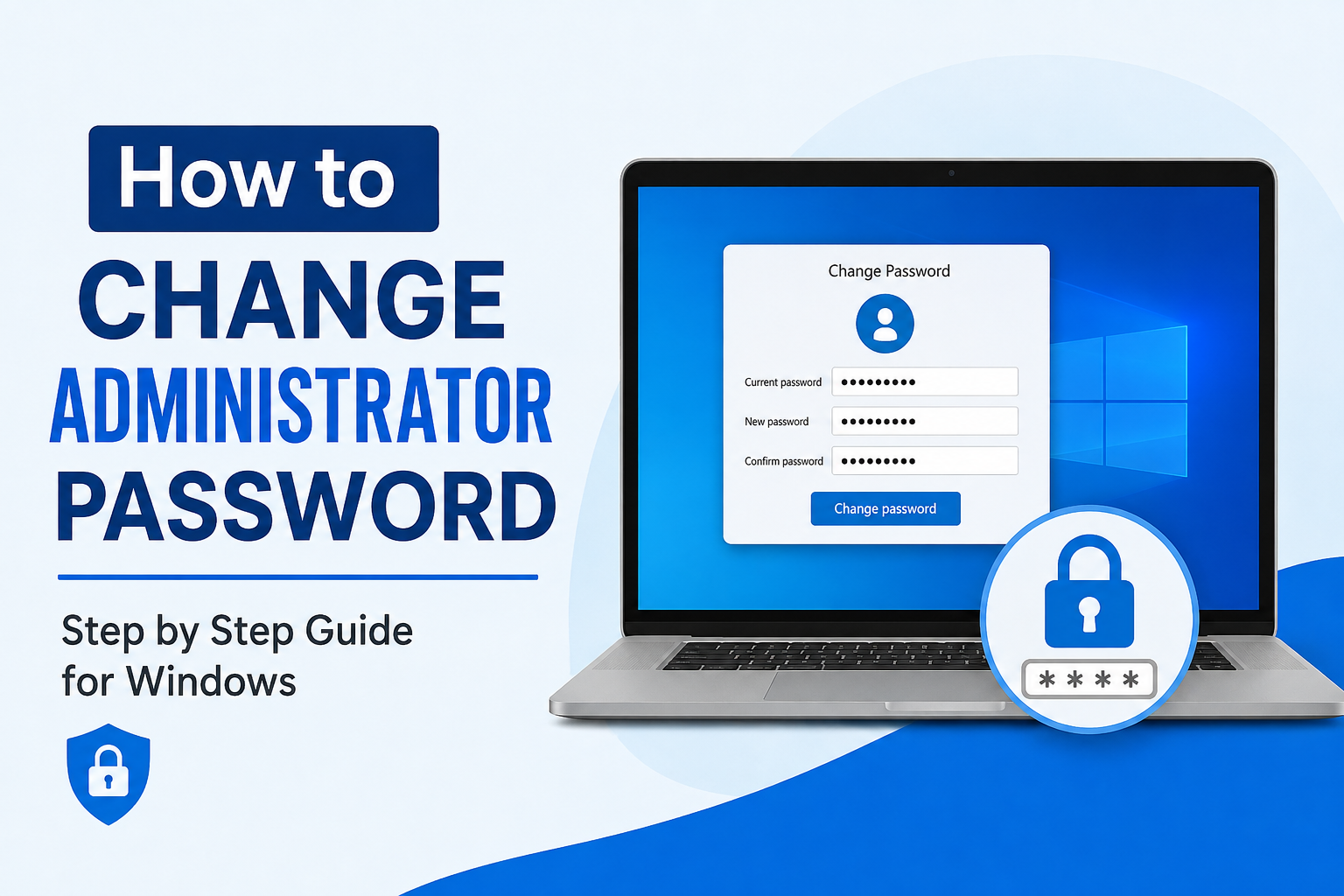
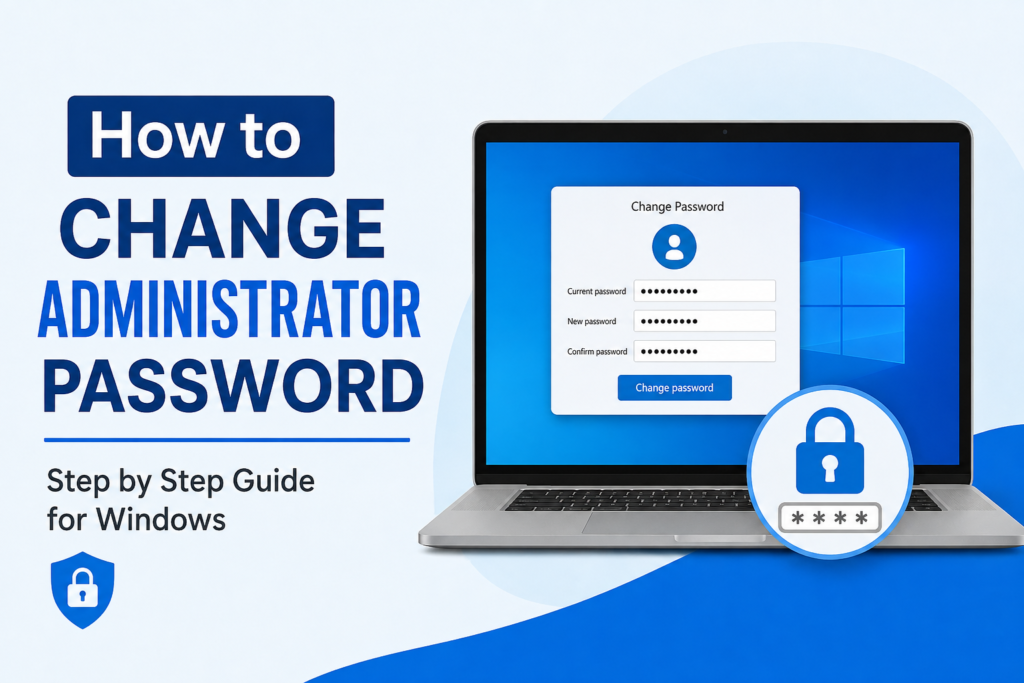
If you use a Windows computer every day like I do, protecting your administrator account should always be one of your top priorities. The administrator account has complete control over the computer. It can install programs, change system settings, create or remove user accounts, and access important files. Because of this, having a strong and updated administrator password is essential.
I have personally made it a habit to change my administrator password every few months. It is a simple task that only takes a few minutes, but it can greatly improve the security of my computer. Whether you use your PC for work, study, gaming, or personal tasks, knowing how to change the administrator password is an important skill.
In this guide, I will explain different methods to change the administrator password in Windows. I will also share useful tips to create a strong password and solve common problems that may appear during the process.
Why Should You Change Your Administrator Password
Many people keep the same password for years. While this may seem convenient, it is not a good security practice.
Here are some reasons why I recommend changing your administrator password regularly.
Your password may have been shared with someone.
You may have logged into your computer on a public or shared network.
Your current password might be too simple.
You want to improve your computer’s security.
You suspect someone knows your password.
You recently bought a second hand computer.
Changing the administrator password helps reduce the risk of unauthorized access to your personal files and system settings.
Before You Start
Before changing the administrator password, make sure you know the current administrator password. If you have forgotten it, some methods may not work.
Also remember that changing the administrator password will not delete your personal files. Your documents, photos, videos, and installed programs will remain safe.
Method 1 Change Administrator Password from Settings
This is the easiest method and the one I use most often.
First, open the Settings app by pressing Windows and I together.
Click on Accounts.
Choose Sign in options.
Under Password, click Change.
Windows will ask you to enter your current password.
After that, type your new password.
Confirm the new password.
Add a password hint that helps you remember it.
Click Next.
Finally, click Finish.
Your administrator password has now been updated successfully.
Method 2 Change Password Using Control Panel
Although Windows Settings is becoming more popular, Control Panel still provides an easy way to change passwords.
Open Control Panel.
Select User Accounts.
Click User Accounts again.
Choose Manage another account if needed.
Select the administrator account.
Click Change the password.
Enter your current password.
Type your new password.
Confirm the new password.
Click Change Password.
The new password will become active immediately.
Method 3 Change Administrator Password with Ctrl Alt Delete
This method has been available in Windows for many years.
Press Ctrl Alt Delete on your keyboard.
Select Change a password.
Enter your old password.
Type the new password.
Confirm the new password.
Press Enter.
Within a few seconds, Windows will update your administrator password.
I like this method because it works quickly without opening multiple windows.
Method 4 Change Administrator Password Using Computer Management
Windows Professional and Enterprise editions include Computer Management.
Right click the Start button.
Select Computer Management.
Expand Local Users and Groups.
Click Users.
Find the administrator account.
Right click it.
Choose Set Password.
Read the warning message.
Click Proceed.
Enter the new password.
Confirm it.
Click OK.
The administrator account now uses the new password.
Method 5 Change Password Using Command Prompt
If you enjoy using command line tools, this method is very fast.
Open Command Prompt as Administrator.
Type the following command.
net user Administrator NewPassword
Replace NewPassword with your desired password.
For example.
net user Administrator MySecurePassword2026
Press Enter.
If everything is correct, Windows will display a message saying the command completed successfully.
I usually recommend choosing a much stronger password than the example shown above.
Method 6 Change Password Using Windows PowerShell
PowerShell is another useful tool included with Windows.
Open Windows PowerShell as Administrator.
Enter the required command to change the password.
PowerShell provides additional options for administrators who manage multiple computers.
Although it looks technical, it works very well once you become familiar with it.
How to Create a Strong Administrator Password
Creating a secure password is just as important as changing it.
I always follow a few simple rules when creating passwords.
Use at least twelve characters.
Mix uppercase and lowercase letters.
Include numbers.
Add special characters whenever possible.
Avoid using your name.
Do not use your birthday.
Avoid simple passwords like 123456 or password.
Never reuse passwords from other websites.
A strong password is much harder for hackers to guess.
Should You Use a Microsoft Account
Many Windows users sign in with a Microsoft account instead of a local account.
If your administrator account uses a Microsoft account, changing the password will also update the password you use for Outlook, OneDrive, Microsoft Store, and other Microsoft services.
This means one password protects multiple services, making security even more important.
What Happens After Changing the Password
After updating the administrator password, most users notice no major changes.
However, there are a few things you should know.
You must use the new password during the next login.
Saved passwords in certain applications may need updating.
Other users on the computer are not affected.
Your personal files remain untouched.
System settings stay exactly the same.
What If You Forgot the Administrator Password
Forgetting the administrator password can be frustrating.
If your account uses a Microsoft account, you can reset it online by following Microsoft’s account recovery process.
If you use a local account, recovery depends on whether you created password recovery options earlier.
This is one reason I always recommend keeping a secure record of important passwords.
Common Problems While Changing Administrator Password
Sometimes users experience small issues during the process.
Current Password Is Incorrect
Double check your typing.
Make sure Caps Lock is not enabled.
Verify the keyboard layout.
Access Denied
Ensure you are signed into an administrator account.
Standard users cannot change administrator passwords without permission.
Password Does Not Meet Requirements
Some computers require passwords with a minimum length or special characters.
Create a stronger password and try again.
Administrator Account Is Disabled
Some administrator accounts remain disabled by default.
You may need another administrator account to enable it.
Best Security Practices
Changing your password is only one part of protecting your computer.
I also recommend following these security habits.
Keep Windows updated.
Install trusted antivirus software.
Avoid downloading unknown programs.
Enable Windows Security features.
Use two factor authentication for your Microsoft account.
Lock your computer whenever you leave your desk.
Never share your administrator password with strangers.
These simple habits significantly improve computer security.
How Often Should You Change Your Password
Many people ask how frequently passwords should be changed.
I believe changing the administrator password every three to six months is a good balance between security and convenience.
However, change it immediately if you suspect someone else knows your password.
Is a PIN Better Than a Password
Windows allows users to log in using a PIN.
A PIN is convenient for daily use because it is linked only to your current device.
However, the administrator password still remains the primary credential for many system tasks.
I prefer using both a strong password and a secure PIN for better protection.
Final Thoughts
Changing the administrator password is one of the easiest ways to improve the security of a Windows computer. It only takes a few minutes, but it protects your personal files, applications, and important system settings from unauthorized access.
I make it a habit to update my administrator password regularly because I know that even small security improvements can make a big difference over time. Whether you choose to change it through Windows Settings, Control Panel, Command Prompt, or another method, the process is straightforward and safe.
Most importantly, choose a password that is unique, strong, and difficult to guess. Combine that with regular Windows updates and good security habits, and your computer will remain much better protected against everyday threats. A little effort today can save you from major problems in the future, and that is why I always recommend keeping your administrator password secure and up to date.