If you use a Windows computer every day, there are probably some files or folders that you do not want everyone to see. These could be personal photos, office documents, financial records, passwords, project files, or any other important data. While hiding a file is not the same as encrypting it, it is still a simple and useful way to keep your private content away from casual users.
I have personally used this feature many times whenever I wanted to keep my desktop clean or protect personal files from being opened accidentally. The good thing is that Windows already includes built in options for hiding files and folders, so you do not need to install any extra software.
In this article, I will explain everything I know about hiding files and folders in Windows. I will also share some useful tips that can help you protect your important data more effectively.
Why Hide Files and Folders
There are many reasons why someone may want to hide files or folders.
Sometimes your computer is shared with family members, friends, or coworkers. You may not want them to access your personal documents.
Another reason is to reduce clutter. If your desktop or folders contain files that you rarely use, hiding them can make your workspace look much cleaner.
Developers and advanced users also hide configuration files because changing or deleting these files can cause software to stop working properly.
No matter what your reason is, Windows makes this process very easy.
Method 1 Hide Files Using File Properties
This is the easiest and most popular method.
First, open File Explorer and locate the file or folder that you want to hide.
Right click on the item and select Properties.
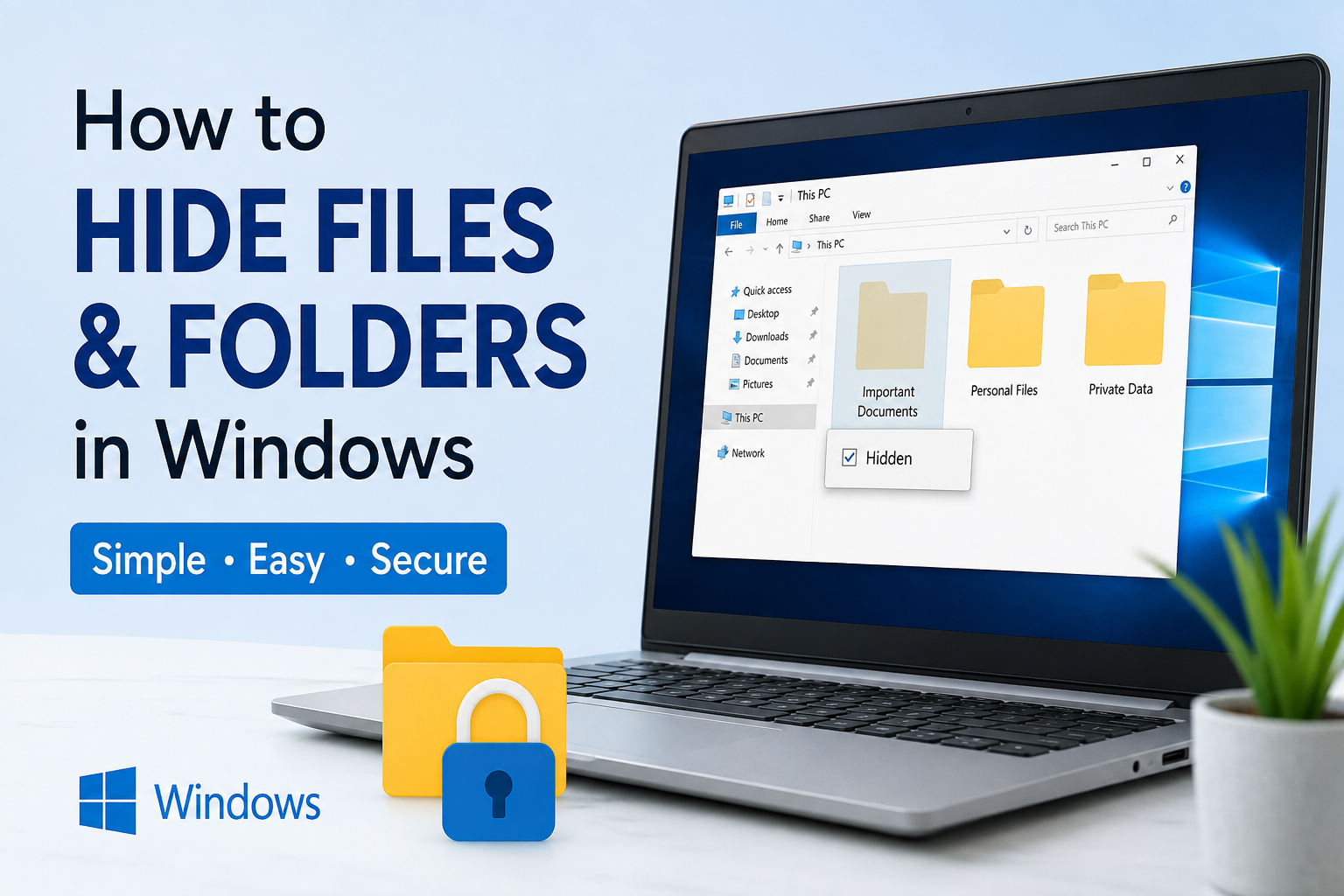
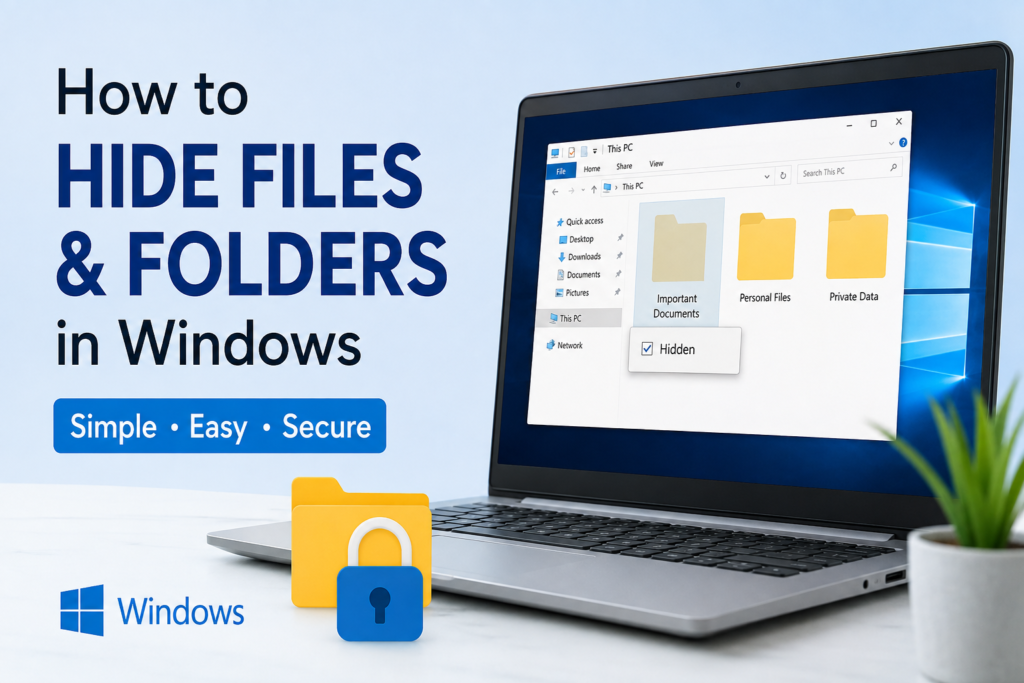
At the bottom of the General tab, you will see an option called Hidden.
Check the Hidden box.
Click Apply and then click OK.
If you are hiding a folder, Windows will ask whether you want to apply the change only to the folder or to all files and subfolders inside it.
Choose the option that best matches your needs.
Once completed, the file or folder will disappear if hidden items are not enabled.
I usually use this method because it takes only a few seconds.
How to View Hidden Files Again
Sometimes you may forget where your hidden files are.
Thankfully, Windows allows you to display hidden items whenever needed.
Open File Explorer.
Click the View option.
Look for Show.
Enable Hidden Items.
Now every hidden file and folder will become visible.
Hidden items usually appear slightly transparent compared to normal files.
When you finish your work, you can disable Hidden Items again to hide them from view.
Method 2 Hide Files Using Command Prompt
If you like using Windows commands, Command Prompt offers another simple way.
Open Command Prompt as Administrator.
Use the following command.
attrib +h “C:\FolderName\FileName”
Replace the path with the actual location of your file or folder.
After pressing Enter, Windows will hide the selected item.
To make it visible again, use this command.
attrib -h “C:\FolderName\FileName”
This method is especially useful when working with multiple files or creating automation scripts.
Method 3 Hide Files Using PowerShell
PowerShell can also hide files.
Open PowerShell.
Type the appropriate command to change the hidden attribute.
PowerShell provides more advanced options for users who manage many files at once.
Although most home users will never need this method, it is still useful to know.
Hide Entire Drives
Windows even allows you to hide an entire drive.
This feature can be useful if you store backups or confidential data on a separate drive.
Press Windows and R together.
Type diskmgmt.msc and press Enter.
Open Disk Management.
You can also use Group Policy or Registry Editor to hide drive letters.
Keep in mind that hiding a drive only removes it from File Explorer. It does not completely secure the data from advanced users.
Make Hidden Files Even Harder to Find
If you want extra privacy, you can combine the Hidden attribute with the System attribute.
This makes the files invisible even when hidden files are enabled unless Windows is configured to display protected operating system files.
You can use this command.
attrib +h +s “C:\FolderName”
Although this provides another layer of privacy, I do not recommend using it for important files unless you remember exactly where they are.
Password Protection Is Better Than Hiding
Many people think hiding files means they are secure.
This is not completely true.
Anyone who knows how to display hidden items can easily access them.
If your files contain sensitive information, password protection or encryption is a much better option.
Windows Professional editions include BitLocker encryption.
You can also use password protected ZIP files or trusted third party encryption software.
I usually recommend combining hidden folders with encryption if the files contain personal or financial information.
Create a Hidden Personal Folder
One trick I often use is creating a private folder inside another folder that people rarely open.
After creating it, I hide the folder using Windows Properties.
Then I disable Hidden Items in File Explorer.
This simple trick works surprisingly well for keeping everyday files out of sight.
Of course, it should not replace proper security, but it helps prevent accidental access.
Common Reasons Hidden Files Become Visible
Sometimes users become confused because their hidden files suddenly appear.
This usually happens because Hidden Items has been enabled in File Explorer.
Another possibility is that Windows settings have changed after a system update.
Some third party file managers also display hidden files automatically.
If this happens, simply disable Hidden Items again.
Things You Should Never Hide
While hiding files is useful, there are some files you should avoid hiding.
Important system files should never be modified unless you fully understand their purpose.
You should also avoid hiding documents that you frequently edit because you may forget their location.
Always keep a backup of valuable files before making major changes.
A backup can save you from accidental deletion or data loss.
Tips for Better File Privacy
Use strong passwords on your Windows account.
Lock your computer whenever you leave your desk.
Keep Windows updated with the latest security patches.
Create regular backups of important files.
Use encryption for confidential documents.
Avoid storing passwords in plain text files.
These simple habits provide much stronger protection than hiding files alone.
Advantages of Hiding Files
Hiding files offers several benefits.
It keeps personal documents away from casual users.
It helps organize your folders by removing unnecessary clutter.
It prevents accidental editing or deletion.
It requires no additional software.
It works on almost every modern version of Windows.
For everyday privacy, it is one of the simplest features available.
Limitations of Hidden Files
There are also some disadvantages.
Hidden files are not encrypted.
Anyone with basic Windows knowledge can make them visible.
They do not protect against malware.
They do not stop administrators from accessing the data.
This is why I always remind people that hiding files should only be considered a privacy feature rather than a complete security solution.
Final Thoughts
Learning how to hide files and folders in Windows is a useful skill that every computer user should know. It only takes a few clicks, requires no additional software, and works on almost every Windows version. Whether you want to keep personal documents private, organize your workspace, or prevent accidental access, the built in hidden file feature is more than enough for everyday use.
In my experience, hiding files is best used as a convenience feature instead of a security feature. If the information is highly sensitive, I always recommend combining hidden folders with password protection or encryption for better safety. By following the methods shared in this guide, you can keep your files organized, protect your privacy, and use your Windows computer more confidently.