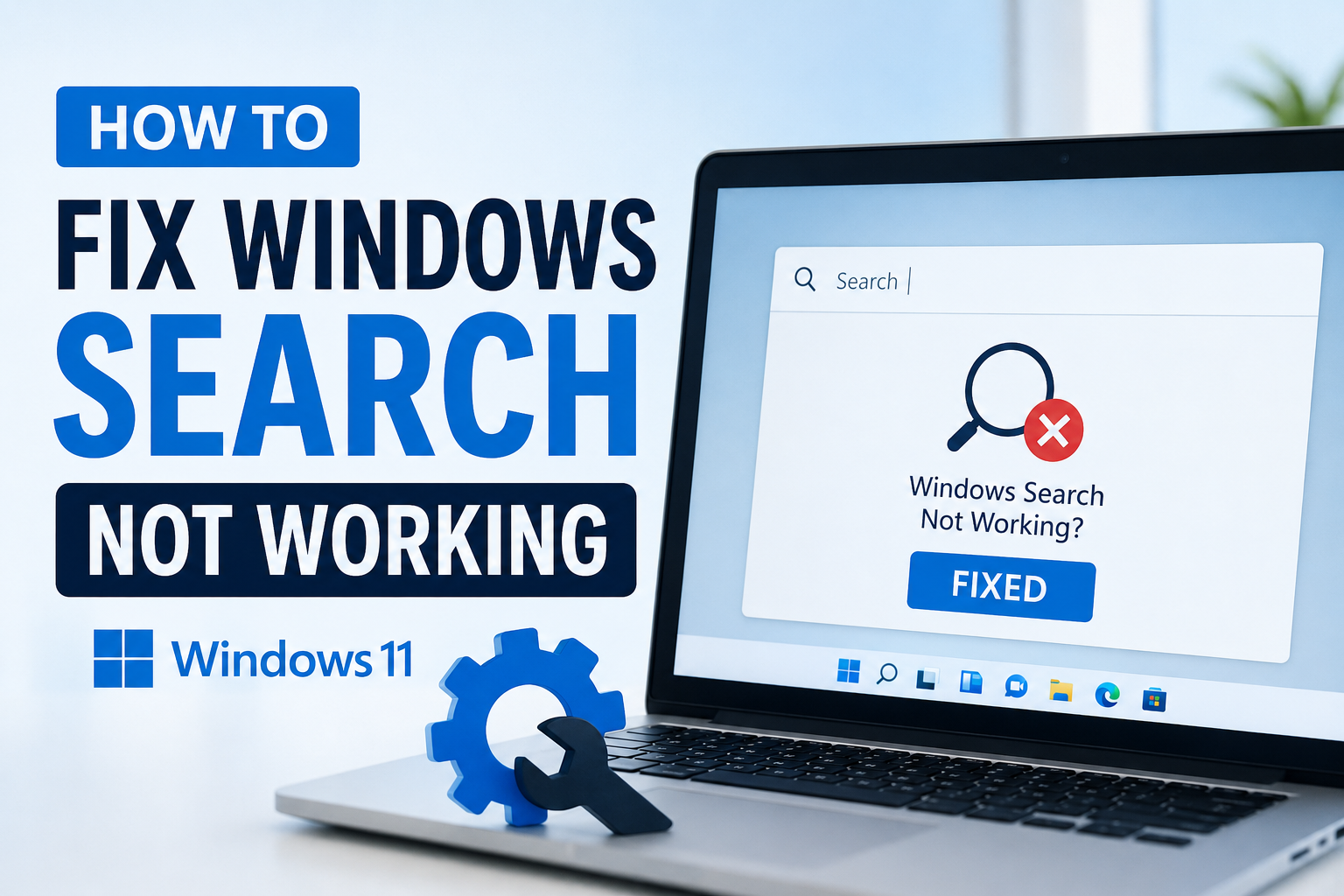
Windows Search is one of those features that I never think about until it suddenly stops working. The moment I press the Windows key and start typing, I expect my apps, files, and settings to appear instantly. When nothing happens or the search box refuses to respond, even simple tasks become frustrating.
I have faced this issue several times on different Windows computers, and every time the cause was different. Sometimes it was a temporary system glitch, while other times a Windows update or corrupted search index created the problem. The good news is that Windows Search can usually be fixed without reinstalling the operating system.
In this guide, I will share the methods that have worked for me. I recommend trying them one by one because you never know which solution will solve the issue on your PC.
Why Windows Search Stops Working
Before trying any fixes, I think it helps to understand why Windows Search may stop working.
Some of the most common reasons include corrupted system files, a damaged search index, disabled Windows services, outdated Windows updates, software conflicts, and temporary bugs after restarting the computer. In rare situations, antivirus software or registry changes can also interfere with the search feature.
Once I understood these possible causes, solving the issue became much easier.
Restart Your Computer First
This may sound too simple, but restarting the computer is always the first thing I do.
Sometimes Windows Search stops responding because a background process freezes. A simple restart refreshes all Windows services and clears temporary errors.
If you have not restarted your PC recently, save your work and reboot the system before trying anything else.
Restart Windows Explorer
Windows Explorer controls many parts of the Windows interface, including the Start menu and Search.
To restart it, press Ctrl Shift Esc to open Task Manager.
Find Windows Explorer in the list.
Right click it.
Choose Restart.
After a few seconds, check if Windows Search starts working again.
I have fixed the issue many times using this simple method.
Run the Windows Search Troubleshooter
Windows includes a built in troubleshooter that automatically detects common problems.
Open Settings.
Go to System.
Open Troubleshoot.
Select Other troubleshooters.
Find Search and Indexing.
Click Run.
The troubleshooter will ask a few questions and automatically apply possible fixes. Even if it does not completely solve the problem, it often points you in the right direction.
Check Windows Search Service
Windows Search depends on a background service. If this service is disabled, the search feature will not work properly.
Press Windows Key and R.
Type services.msc.
Press Enter.
Find Windows Search.
Double click it.
Make sure Startup Type is set to Automatic.
If the service is stopped, click Start.
Click Apply and then OK.
Restart your computer and test the search feature.
Rebuild the Search Index
The search index helps Windows locate files quickly. If it becomes corrupted, search results may disappear or stop loading.
Open Control Panel.
Select Indexing Options.
Click Advanced.
Choose Rebuild.
Depending on the number of files on your computer, rebuilding may take some time.
During the rebuilding process, search results may be incomplete, but everything should return to normal once the indexing finishes.
Restart the Search Process
Sometimes only the search process crashes while the rest of Windows continues working.
Open Task Manager.
Locate SearchHost.exe or SearchApp.exe.
Right click it.
Choose End Task.
Windows automatically starts the process again after a few seconds.
Test the search box to see whether it responds normally.
Update Windows
I always keep Windows updated because Microsoft regularly releases fixes for bugs affecting the Start menu and Search.
Open Settings.
Go to Windows Update.
Click Check for Updates.
Download and install all available updates.
Restart the computer after installation.
Many search related problems disappear after installing the latest updates.
Check for Corrupted System Files
Corrupted Windows files are another common reason behind search problems.
Open Command Prompt as Administrator.
Run this command.
sfc /scannow
Wait until the scan reaches one hundred percent.
If Windows finds corrupted files, it automatically repairs them.
After the scan finishes, restart the computer and check Windows Search again.
Use the DISM Command
If System File Checker cannot repair everything, I usually run the DISM tool.
Open Command Prompt as Administrator.
Run this command.
DISM /Online /Cleanup Image /RestoreHealth
This process may take several minutes depending on your computer speed.
Restart your computer after it completes.
Sign Out and Sign Back In
Sometimes the problem is related to the user profile instead of Windows itself.
Signing out and logging back into your account refreshes many Windows components.
If that does not help, create a new user account and check whether Search works there.
If it works in the new account, your original profile may have become corrupted.
Disable Third Party Antivirus Temporarily
Some antivirus programs interfere with Windows Search.
Temporarily disable your antivirus software and test the search feature.
If Search starts working immediately, check for antivirus updates or adjust its settings.
Remember to enable your antivirus again after testing.
Reset Windows Search
Microsoft provides ways to reset Windows Search if it becomes corrupted.
Using Windows PowerShell as Administrator, you can repair search related components and restore default functionality.
This method has solved several stubborn search issues for me when nothing else worked.
Check Keyboard Functionality
Sometimes users believe Windows Search is broken when the keyboard is actually causing the issue.
Open Notepad and type several words.
If some keys do not respond, reconnect the keyboard or update its drivers.
Trying another keyboard is also a quick way to identify hardware problems.
Remove Recently Installed Software
If Windows Search stopped working immediately after installing a new application, that software could be causing conflicts.
Open Control Panel.
Go to Programs.
Choose Uninstall a Program.
Remove the recently installed application.
Restart your computer and check the search feature again.
Free Up Disk Space
Windows needs enough free storage to operate efficiently.
If your drive is nearly full, search indexing may stop functioning correctly.
Delete unnecessary files.
Empty the Recycle Bin.
Use Disk Cleanup to remove temporary files.
A cleaner system usually performs much better.
Perform a Clean Boot
Background applications sometimes interfere with Windows Search.
A Clean Boot starts Windows using only essential Microsoft services.
If Search works during Clean Boot mode, enable startup programs one by one until you identify the software causing the conflict.
This method requires patience but is very effective.
Restore Your System
If Windows Search was working perfectly a few days ago, System Restore may be the fastest solution.
Choose a restore point created before the issue appeared.
Windows restores important system settings without affecting your personal files.
I have successfully fixed several Windows issues this way after problematic software installations.
Reset Windows as a Last Resort
If absolutely nothing works, resetting Windows may be necessary.
Open Settings.
Go to Recovery.
Choose Reset This PC.
Select the option to keep your personal files if possible.
Although reinstalling Windows takes time, it usually restores all system features, including Windows Search.
Tips to Prevent Windows Search Problems
I have learned that preventing issues is easier than fixing them.
Always keep Windows updated.
Avoid installing unnecessary optimization tools.
Do not disable important Windows services.
Keep enough free storage on your system drive.
Restart your computer regularly instead of leaving it running for weeks.
Create restore points before making major system changes.
These habits have helped me avoid most Windows Search problems over the years.
Final Thoughts
Windows Search is one of the most useful features in Windows, and when it stops working, it can slow down almost everything I do. Fortunately, the problem is rarely permanent. In my experience, simple solutions like restarting Windows Explorer, rebuilding the search index, updating Windows, or repairing corrupted system files solve the issue most of the time.
If the basic methods do not work, continue through the advanced solutions patiently instead of jumping directly to reinstalling Windows. Every computer is different, and the cause of the problem may vary. By following each step carefully, you have a very good chance of getting Windows Search back to normal without losing your files.
I hope the solutions I shared help you fix the problem quickly so you can get back to using your computer without the frustration of a broken search feature.