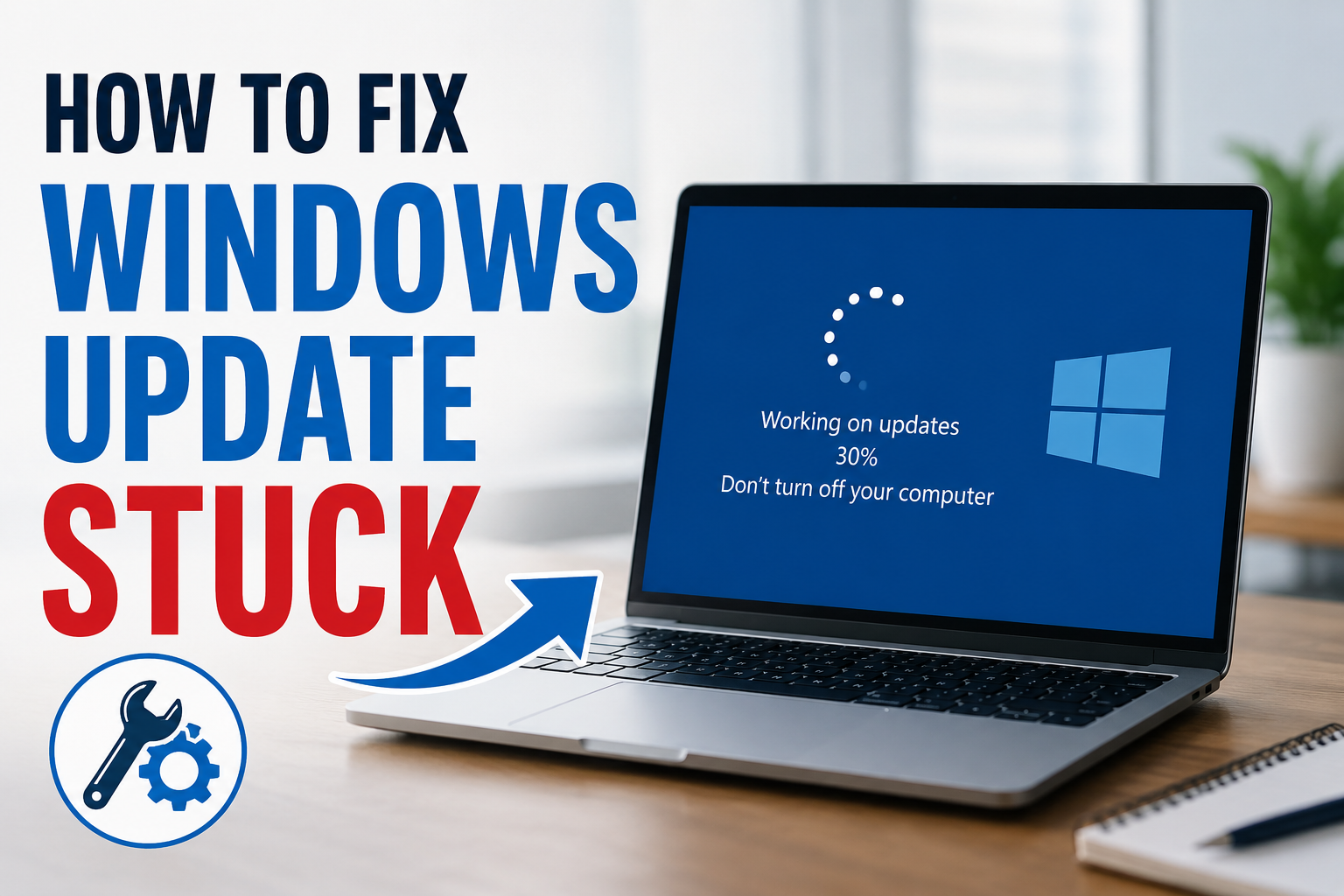
Keeping Windows updated is one of the best ways to improve security, fix bugs, and enjoy new features. However, there have been many times when I started a Windows update and suddenly realized that it was stuck for a long time. The progress bar stopped moving, the percentage never changed, or the update kept loading without completing. It can be frustrating, especially when I need my computer for important work.
The good news is that a stuck Windows update does not always mean something is seriously wrong. In most cases, the problem can be solved with a few simple steps. I have experienced this issue more than once, and over time I found several methods that actually work. In this article, I will share everything I usually do whenever Windows Update gets stuck.
Why Windows Update Gets Stuck
Before trying any solution, I always like to understand why the problem happens. Windows Update can stop working for many reasons. Sometimes the internet connection becomes unstable during the download process. Other times, corrupted update files prevent Windows from completing the installation. Low storage space, damaged system files, outdated drivers, or software conflicts can also cause update problems.
Knowing the possible reason helps me stay calm because I know there is usually a solution.
Wait a Little Longer
The first thing I always do is wait patiently. Some Windows updates are much larger than others. Feature updates can take a long time, especially on older computers or systems with traditional hard drives.
Even if the percentage appears frozen, Windows may still be working in the background. I usually wait at least thirty to sixty minutes before assuming that the update is actually stuck.
If the hard drive light is still blinking or I can hear the drive working, I know Windows is probably still processing files.
Check the Internet Connection
Many Windows updates require a stable internet connection. If the connection drops during the download, the update may stop progressing.
I always make sure my WiFi or Ethernet connection is working properly. I open a browser on another device to confirm that the internet is active. If the connection seems slow, I restart my router and reconnect my computer.
Once the internet becomes stable, Windows often continues downloading automatically.
Restart the Computer
If the update has been frozen for a very long time and there is no sign of activity, I restart the computer.
Sometimes Windows finishes the update after restarting. Other times, it rolls back the incomplete installation and allows me to try again.
I avoid turning the power off immediately unless the computer has been completely unresponsive for a long time. A normal restart is always the safer option.
Run the Windows Update Troubleshooter
One of the easiest solutions I use is the built in Windows Update Troubleshooter.
I open the Settings app and go to System, then Troubleshoot, then Other troubleshooters. From there, I run the Windows Update troubleshooter.
It automatically checks for common problems, repairs damaged settings, restarts required services, and fixes issues that prevent updates from installing.
Many times this tool has solved the problem without requiring any advanced steps.
Free Up Storage Space
Windows updates need enough free storage to download and install correctly.
Whenever I notice my system drive is almost full, I delete unnecessary files before trying the update again.
I usually remove temporary files, empty the Recycle Bin, uninstall applications I no longer use, and move large files to another drive or cloud storage.
Having at least twenty to thirty gigabytes of free space gives Windows enough room to complete major updates smoothly.
Restart Windows Update Services
Sometimes the Windows Update service stops responding.
When this happens, I restart the related services.
I open the Services application, find Windows Update, and restart it. I also restart the Background Intelligent Transfer Service because it handles update downloads.
After restarting these services, Windows Update often begins working again.
Clear the Windows Update Cache
Corrupted update files are another common reason for installation failures.
When I suspect damaged files, I clear the Windows Update cache.
I stop the Windows Update service, delete the contents inside the SoftwareDistribution folder, restart the service, and then check for updates again.
Windows automatically downloads fresh update files, which usually fixes download errors.
Run System File Checker
Sometimes damaged Windows system files prevent updates from installing properly.
I open Command Prompt as Administrator and run the System File Checker.
The scan checks important Windows files and replaces any corrupted versions with healthy copies.
Depending on the size of the system, the scan may take several minutes, but it is worth waiting because it often repairs hidden issues.
Use DISM to Repair Windows
If the System File Checker cannot solve the issue, I use the Deployment Image Servicing and Management tool.
DISM scans the Windows image and repairs damaged components used during updates.
After running DISM successfully, I restart the computer and run System File Checker again to ensure everything is repaired.
This combination has solved several update problems for me.
Disconnect External Devices
Sometimes external hardware causes unexpected conflicts during Windows updates.
Before installing important updates, I disconnect unnecessary USB devices, printers, external hard drives, memory cards, and other accessories.
Leaving only the keyboard, mouse, and monitor connected reduces the chances of hardware related problems.
Disable Antivirus Temporarily
Security software occasionally interferes with Windows updates.
If every other method fails, I temporarily disable my antivirus program before checking for updates again.
Once the update finishes successfully, I immediately enable the antivirus again to keep my computer protected.
I never leave security software disabled for longer than necessary.
Check for Driver Problems
Old or incompatible drivers can interrupt Windows updates.
I open Device Manager and look for devices showing warning icons.
If I find outdated drivers, I install the latest versions from the manufacturer’s official website.
Keeping drivers updated helps Windows install future updates more smoothly.
Boot into Safe Mode
If Windows refuses to update normally, I sometimes start the computer in Safe Mode.
Safe Mode loads only essential drivers and services.
This reduces software conflicts and allows me to troubleshoot the update without interference from third party applications.
After restarting normally, Windows Update often works correctly.
Perform a Clean Boot
Background applications sometimes block Windows Update.
A Clean Boot starts Windows with only Microsoft services enabled.
I disable unnecessary startup applications, restart the computer, and try the update again.
If the update succeeds, I know another application was causing the conflict.
Install the Update Manually
When automatic updates repeatedly fail, I download the update manually.
I first check the update number in Windows Update settings.
Then I search for the same update in the Microsoft Update Catalog and download the version that matches my system.
Manual installation has helped me complete updates that refused to install automatically.
Reset Windows Update Components
If nothing else works, I reset every Windows Update component.
This process restarts update services, clears cached files, resets network settings related to updates, and rebuilds the update database.
Although it takes a little more time, it often fixes stubborn update problems that other methods cannot solve.
Keep Windows Healthy
I have learned that preventing update problems is easier than fixing them.
I always keep enough free storage available, install trusted software only, avoid unexpected shutdowns during updates, scan my computer regularly for malware, and restart my PC from time to time.
These simple habits help Windows remain stable and reduce update related issues.
When to Seek Professional Help
If every solution fails and Windows Update still remains stuck, there may be a deeper hardware or operating system problem.
In that situation, I back up my important files before attempting advanced repairs such as System Restore, Startup Repair, or reinstalling Windows.
Backing up data first gives me peace of mind because I know my personal files are safe even if I need to reset the operating system.
Final Thoughts
A stuck Windows Update can look worrying at first, but in my experience, it is usually fixable without reinstalling Windows. I always begin with the simplest solutions like waiting, checking my internet connection, restarting the computer, and running the Windows Update Troubleshooter. If those methods do not work, I move on to clearing the update cache, repairing system files, checking drivers, and manually installing updates.
The key is to stay patient and work through each solution one step at a time. Most update problems have a logical cause and an effective fix. By following these methods, I have successfully recovered several computers from Windows Update issues, and I hope these tips help you get your system updated and running smoothly again.