If you have ever noticed your Windows computer becoming slow for no clear reason, there is a good chance that high CPU usage is the main problem. I have faced this issue several times, and I know how frustrating it can be. Everything starts taking longer than usual. Applications freeze, the fan becomes louder, and even simple tasks like opening a browser or watching a video become difficult.
At first, I thought the only solution was to buy a new computer. Later, I realized that in most cases, the problem can be fixed without spending any money. Windows offers several built in tools that help identify what is causing the CPU to work harder than it should. Once I started using these methods, my computer became much faster and more responsive.
In this article, I will share the same solutions that worked for me. These methods are simple enough for beginners, and you do not need advanced technical knowledge to follow them.
What Is CPU Usage
The CPU is often called the brain of the computer. Every program you open depends on the CPU to process instructions. When you launch a browser, play music, edit photos, or install software, the CPU handles those tasks.
CPU usage shows how much of the processor’s power is currently being used. A small percentage is completely normal. However, if the CPU constantly stays between ninety and one hundred percent, your computer will start slowing down. This usually means that one or more applications are consuming too many system resources.
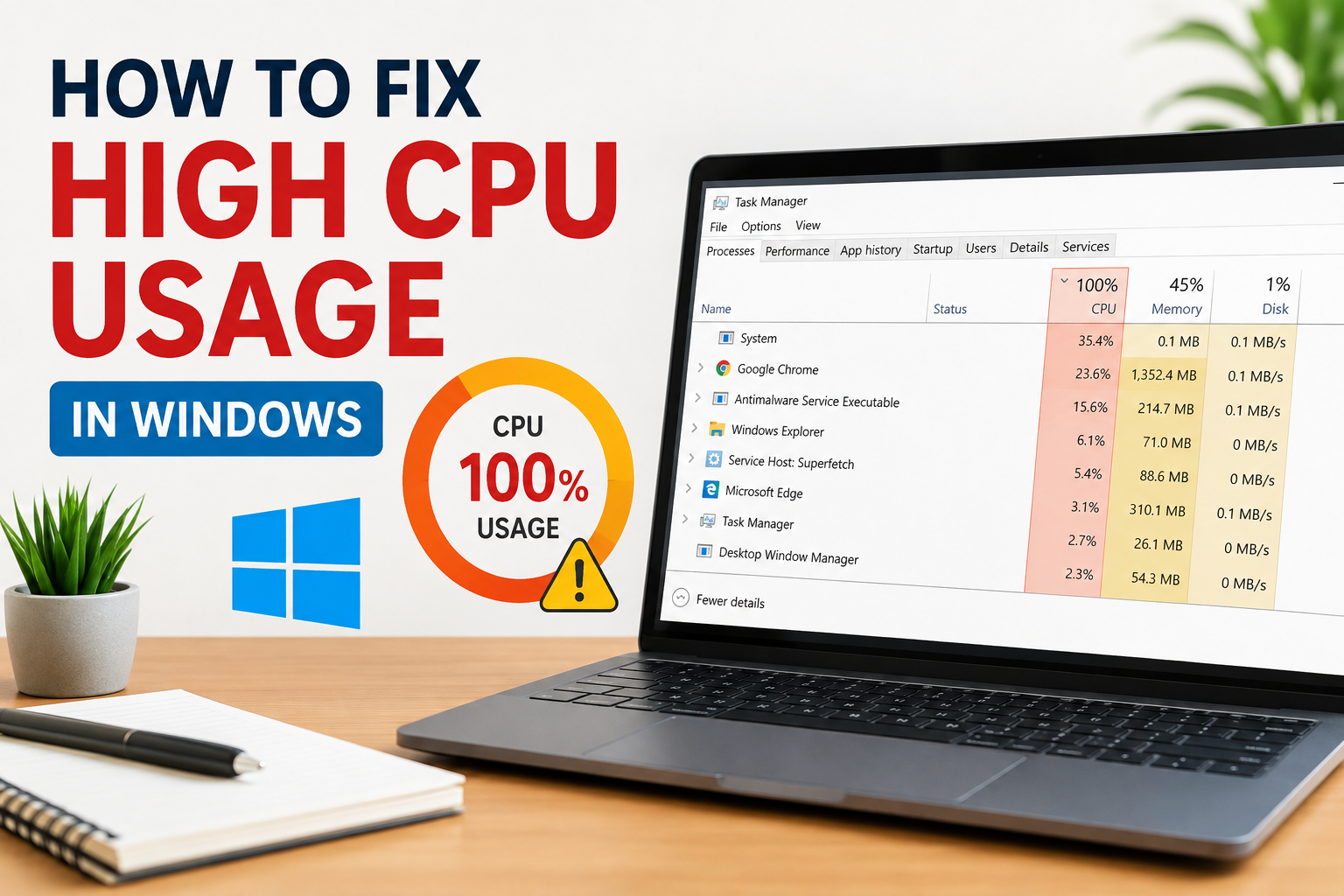
How to Check CPU Usage
The first thing I always do is check which application is using the CPU.
Press Ctrl, Shift, and Esc together to open Task Manager.
Click on the Processes tab.
Now look at the CPU column. The application with the highest percentage is usually responsible for the problem.
If you notice a program using an unusually high amount of CPU for a long time, that is the first thing you should investigate.
Restart Your Computer
This may sound too simple, but restarting the computer often solves the issue.
Sometimes applications continue running in the background even after you close them. Temporary system errors can also increase CPU usage.
A restart clears temporary files, closes unnecessary processes, and gives Windows a fresh start. I always try this before moving to more advanced solutions.
Close Unnecessary Programs
Many people keep dozens of applications open without realizing how much CPU they consume.
Close programs that you are not using.
If you have multiple browser tabs open, close the ones you no longer need.
Exit heavy applications such as video editors, games, and virtual machines when they are not required.
Doing this immediately reduces CPU usage on many systems.
Disable Startup Applications
One mistake I used to make was allowing every application to start automatically with Windows.
Many applications continue running in the background from the moment the computer starts.
Open Task Manager.
Go to the Startup Apps section.
Disable programs that you do not need every time Windows starts.
This helps reduce CPU usage and also makes the computer boot much faster.
Update Windows
Microsoft regularly releases updates that improve performance and fix bugs.
If your Windows installation is outdated, it may contain issues that cause unnecessary CPU usage.
Open Settings.
Go to Windows Update.
Check for available updates.
Install them and restart your computer.
Keeping Windows updated has helped me solve several performance problems over the years.
Scan for Malware
Viruses and malware are common reasons for unusually high CPU usage.
Some malicious programs secretly run in the background, using your computer to perform unwanted tasks.
Run a full scan using Windows Security or another trusted antivirus program.
If malware is detected, remove it immediately and restart your computer.
A clean system always performs better.
Update Device Drivers
Outdated drivers can create hardware conflicts that increase CPU usage.
I recommend updating graphics drivers, chipset drivers, and network drivers regularly.
You can update drivers through Device Manager or by downloading the latest versions from your hardware manufacturer’s website.
Updated drivers improve stability and overall system performance.
Reduce Background Processes
Windows allows many applications to continue running even when you are not actively using them.
Open Settings.
Go to Apps.
Review installed applications.
Disable background permissions for apps you rarely use.
Reducing background activity helps free valuable CPU resources.
Adjust Power Settings
Your computer’s power plan also affects CPU performance.
Open Control Panel.
Select Power Options.
Choose the Balanced power plan if it is available.
This setting provides a good balance between performance and energy efficiency for most users.
Clear Temporary Files
Temporary files build up over time and may reduce system performance.
Use Disk Cleanup or Storage Sense to remove unnecessary files.
Cleaning temporary data gives Windows more room to operate efficiently and may improve overall responsiveness.
Final Thoughts
High CPU usage in Windows can make even a powerful computer feel slow, but in my experience, the problem is usually fixable without replacing any hardware. By checking Task Manager, closing unnecessary programs, disabling startup apps, updating Windows, scanning for malware, updating drivers, and reducing background activity, I have been able to restore normal performance on many computers.
The key is to identify the cause instead of guessing. Once you find the application or service responsible for the high CPU usage, the solution becomes much easier. I recommend performing regular maintenance, keeping your system updated, and avoiding unnecessary software running in the background. These simple habits will keep your Windows PC running smoothly and help prevent high CPU usage in the future.