There have been many times when my Windows computer started acting strangely. Sometimes it became very slow, some applications stopped responding, and occasionally I faced unexpected system errors. My first thought was always that I might have to reinstall Windows, but I was worried about losing my personal files. After learning more about Windows, I realized that Microsoft provides an easy way to reset the operating system while keeping personal files safe. Since then, I have used this feature several times, and it has saved me a lot of time and effort.
In this article, I will share everything I know about resetting Windows without losing files. If your computer is running slowly or experiencing software problems, this method can help you restore Windows to a fresh state while keeping your important documents, pictures, videos, and other personal data.
What Does Reset Windows Mean
Resetting Windows is a built in recovery feature that reinstalls the operating system. During the reset process, Windows replaces damaged or corrupted system files with fresh copies. This helps fix many common software related problems.
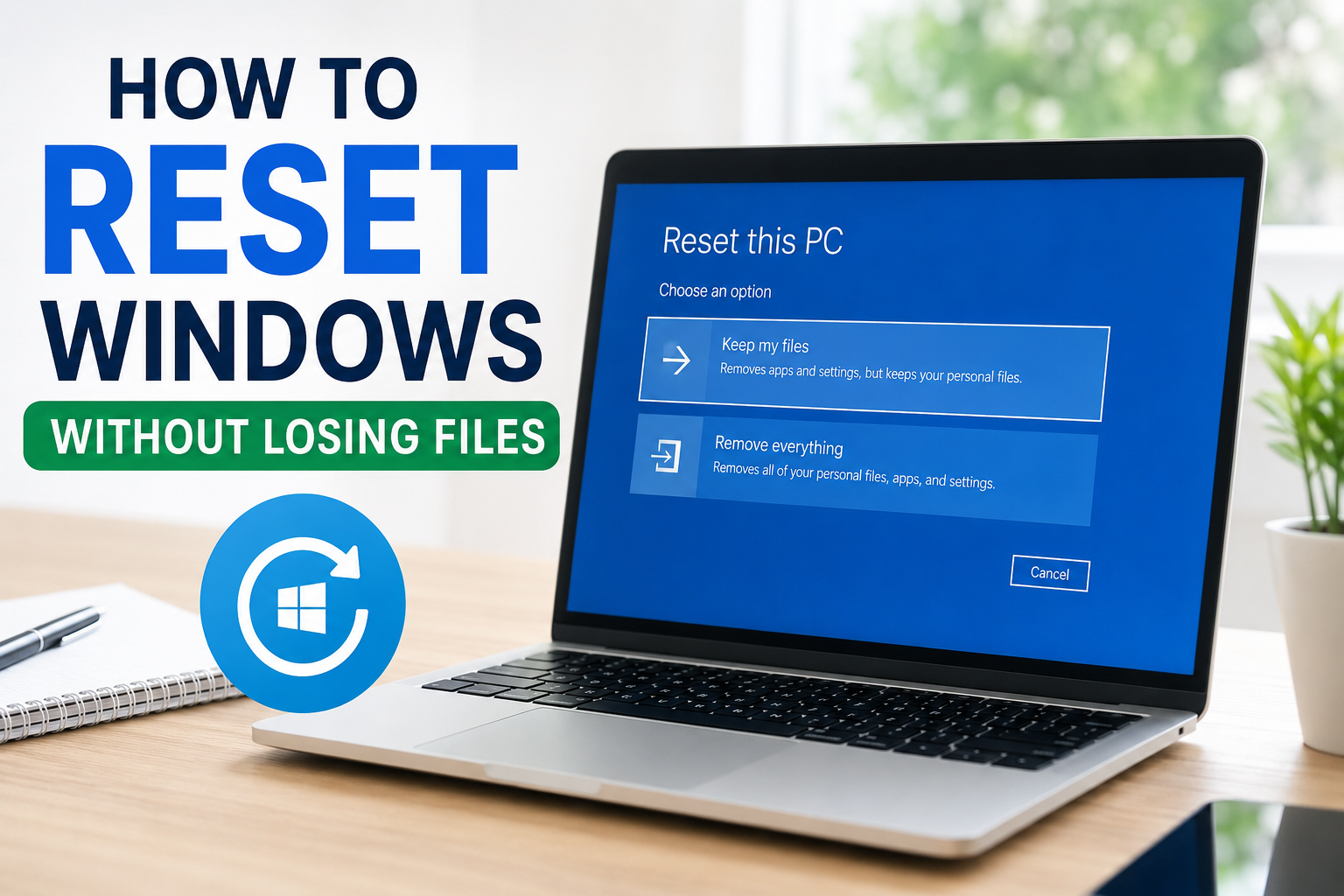
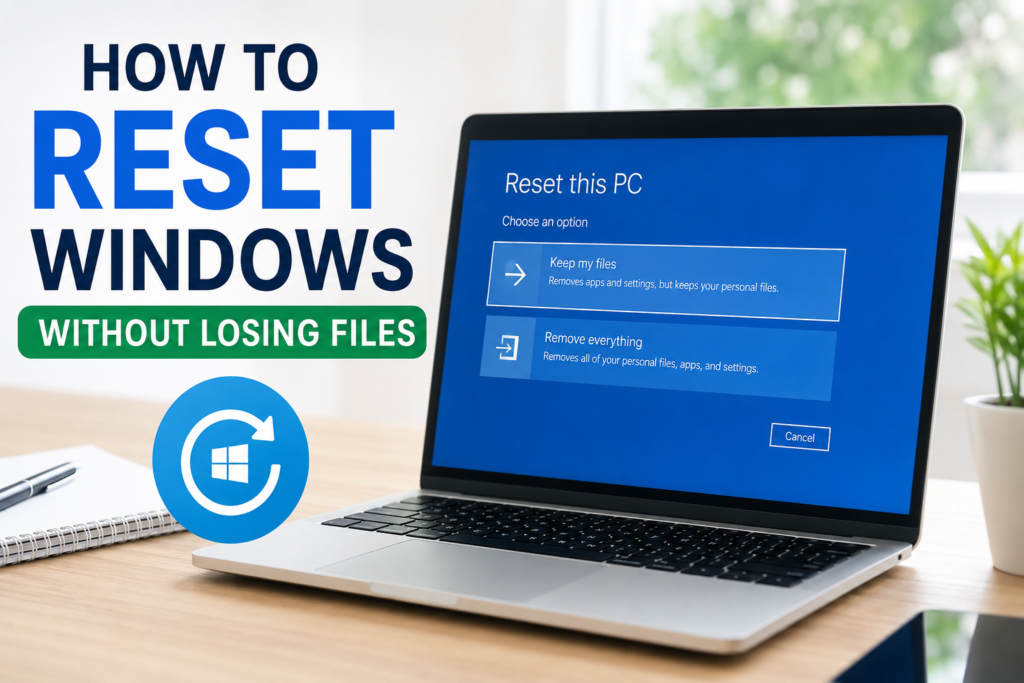
One of the best things about this feature is that it gives you two options. You can either keep your personal files or remove everything. If your goal is to solve system problems without losing your important data, you should choose the option that keeps your files.
Will My Files Be Safe
This is probably the biggest question most people ask before starting the reset process. From my own experience, choosing the Keep my files option keeps personal files stored in folders like Documents, Pictures, Videos, Desktop, and Music.
However, there are a few things that will be removed.
Installed applications that did not come with Windows will be deleted.
Custom system settings will return to their default values.
Device drivers may need to be updated again.
Some Windows preferences will be reset.
Even though personal files are usually kept, I always recommend creating a backup before making any major changes. Having a backup gives extra peace of mind.
When Should You Reset Windows
I usually recommend resetting Windows when basic troubleshooting methods fail.
Some common situations include when the computer becomes extremely slow.
Frequent system crashes.
Windows updates fail repeatedly.
Applications constantly freeze.
Virus damage has affected system files.
Random error messages appear every day.
If your computer has these problems, resetting Windows can often solve them without requiring a complete reinstall.
Things to Do Before Resetting Windows
Although Windows is designed to keep your files, I always prepare my computer before starting the reset process.
First, I copy important documents to an external hard drive or cloud storage.
Next, I make sure I know the passwords for important accounts.
I also create a list of installed programs because they will need to be installed again after the reset.
If possible, I connect my laptop to its charger so that the battery does not run out during the process.
Finally, I make sure I have a stable internet connection in case Windows needs to download installation files.
These simple steps make the entire process much smoother.
How to Reset Windows Without Losing Files
The process is quite simple, especially in Windows 11 and Windows 10.
Click the Start button.
Open Settings.
Select System.
Choose Recovery.
Find the Reset this PC option.
Click Reset PC.
Windows will now show two options.
Choose Keep my files.
After selecting this option, Windows will ask how you want to reinstall the operating system.
Cloud Download or Local Reinstall
Windows gives two installation methods.
Cloud Download
This option downloads a fresh copy of Windows directly from Microsoft’s servers.
I usually prefer this option because it installs the latest version of Windows and replaces damaged installation files.
However, it requires a stable internet connection and several gigabytes of data.
Local Reinstall
This option uses existing files already stored on your computer.
It is usually faster if your internet connection is slow.
If local Windows files are corrupted, Cloud Download may be a better choice.
Both methods keep your personal files if you selected Keep my files earlier.
Confirm Your Choices
After selecting your preferred installation method, Windows will display a summary of what will happen.
I always take a few minutes to read everything carefully.
The summary usually mentions that personal files will remain on the computer.
Installed apps will be removed.
System settings will return to default.
If everything looks correct, click Reset.
At this point, Windows begins preparing for the reset process.
What Happens During the Reset
The computer will restart several times.
During this period, Windows removes damaged system files and installs fresh ones.
Depending on your computer’s speed, the process may take anywhere from twenty minutes to over an hour.
I never interrupt the reset because turning off the computer during installation can create additional problems.
Once Windows finishes installing, it will automatically restart and guide you through a few setup steps.
After logging in, I usually find all my personal files exactly where I left them.
What to Do After Resetting Windows Without Losing Files
Once the reset process is complete and I log back into Windows, the first thing I do is check my personal files. I usually open the Documents, Pictures, Downloads, and Desktop folders to make sure everything is still there. Every time I have used the Keep my files option, my personal data has remained safe, which is why I trust this feature whenever Windows develops serious software issues.
After confirming that my files are available, I begin setting up Windows again. Since the reset removes installed applications, I reinstall the software that I use every day. This usually includes my web browser, office applications, media player, photo editing software, and any other programs that are important for my work. I also make sure to install the latest versions because newer releases often include security improvements and better performance.
The next step is checking for Windows updates. Even if I selected Cloud Download during the reset, there may still be newer updates available. I open the Windows Update section in Settings and allow Windows to download everything it recommends. Keeping the operating system updated helps improve stability, security, and compatibility with modern applications.
I also check Device Manager to make sure all hardware is working correctly. Sometimes Windows automatically installs the correct drivers, but occasionally a graphics card, printer, or wireless adapter may need an updated driver from the manufacturer’s website. Installing the latest drivers helps the computer perform at its best.
Another thing I always do is restore my preferred settings. Since resetting Windows returns many settings to their default values, I customize the desktop background, display preferences, power options, and privacy settings according to my needs. Although this takes a few minutes, it makes the computer feel familiar again.
Common Mistakes to Avoid
Over the years, I have learned that many people make simple mistakes before resetting Windows. Avoiding these mistakes can prevent unnecessary stress.
One common mistake is assuming that every file is guaranteed to remain safe. While Windows is designed to keep personal files, unexpected problems such as power failures or hardware issues can happen. That is why I always recommend creating a backup before starting.
Another mistake is forgetting application license keys. Some paid software requires activation after reinstallation. Keeping product keys or account information ready makes reinstalling much easier.
Some users also interrupt the reset process because they think it is taking too long. In my experience, patience is very important. Depending on the computer’s speed, the process can take quite some time, and restarting the computer manually can cause additional problems.
Ignoring Windows updates after the reset is another mistake. Updated system files often fix bugs and improve performance, so installing updates should always be one of the first tasks after the reset is complete.
Can Resetting Windows Improve Performance?
Based on my experience, the answer is yes. If the slowdown is caused by corrupted system files, damaged settings, or software conflicts, resetting Windows can make the computer feel much faster.
I have personally noticed quicker startup times, smoother application performance, and fewer system errors after performing a reset. However, if the computer is slow because of old hardware, limited RAM, or a failing hard drive, resetting Windows will not completely solve those issues. In that case, upgrading the hardware may provide a much bigger improvement.
Is Resetting Better Than Reinstalling Windows?
For most users, I believe resetting Windows is the better choice. It is much easier than creating installation media and performing a clean installation from scratch.
A clean installation removes everything from the computer, including personal files, applications, and settings. This method is useful in some situations, but it requires much more preparation.
Resetting Windows with the Keep my files option provides a good balance. It refreshes the operating system while allowing you to keep your important documents and other personal data. For everyday software problems, this is usually the simplest and safest solution.
Frequently Asked Questions
Will I lose my photos and documents?
No. If you choose Keep my files, your personal files should remain on your computer.
Will installed applications stay?
No. Most applications that you installed yourself will be removed and must be installed again.
How long does the reset take?
The time depends on your computer and the installation method. Most resets finish within thirty minutes to one hour, although older computers may take longer.
Do I need an internet connection?
Cloud Download requires an internet connection because Windows downloads fresh installation files. Local Reinstall can work without downloading Windows, although internet access is still useful for updates afterward.
Can a reset remove viruses?
A reset can remove many software related problems and some malware, but very advanced threats may require additional security scans. Installing a trusted antivirus program after the reset is always a good idea.
Final Thoughts
Whenever my Windows computer starts experiencing serious software problems, resetting Windows without losing files is one of the first solutions I consider. It is simple, reliable, and much less stressful than performing a complete reinstall. The ability to keep personal files while refreshing the operating system makes this feature incredibly useful for both beginners and experienced users.
Although the process is generally safe, I never skip creating a backup because protecting important data is always the smartest decision. After the reset, I reinstall my favorite applications, update Windows, install the latest drivers, and customize my settings again. Within a short time, my computer usually feels clean, responsive, and ready for everyday use.
If your Windows PC has become slow, unstable, or filled with software errors, I recommend trying the Keep my files reset option before considering more complicated solutions. In many cases, it can restore your computer’s performance while keeping the files that matter most to you.