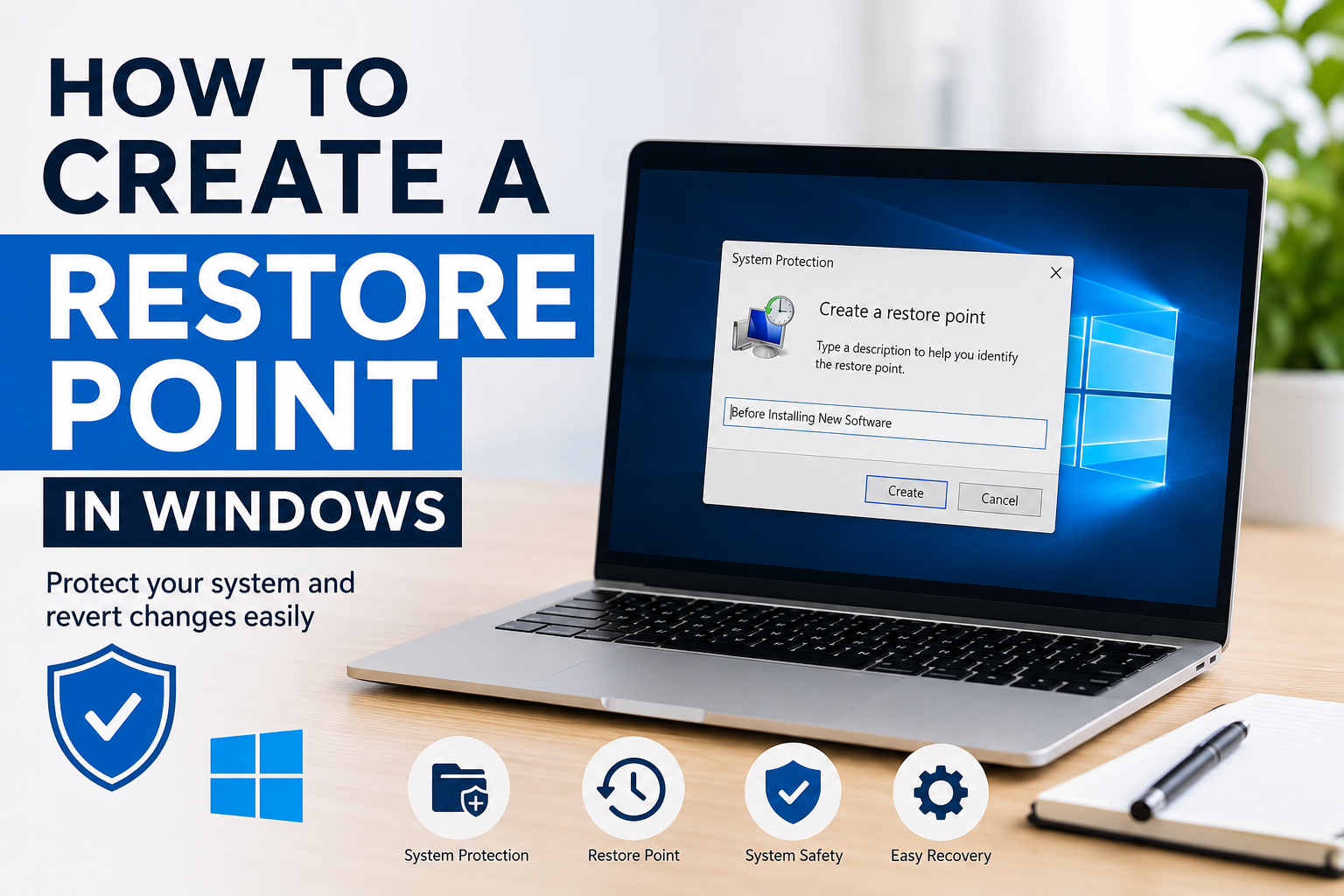
If you have ever installed a program that caused problems or made changes to your Windows settings by mistake, you already know how frustrating it can be. I have experienced this situation several times, and that is why I always recommend creating a restore point before making any major changes to a Windows computer. It only takes a few minutes, but it can save hours of troubleshooting later.
A restore point is one of the most useful built in features of Windows. It creates a snapshot of your system files, settings, registry, and installed applications. If something goes wrong after installing software, updating drivers, or changing important settings, you can restore your computer to the earlier working state without affecting your personal files.
In this article, I will explain everything you need to know about creating a restore point in Windows. I will also share some useful tips that I personally follow to keep my computer safe.
What Is a Restore Point
A restore point is like a backup of your Windows system settings. It records the current condition of important system files and configuration settings. If your computer starts behaving strangely after an update or software installation, you can use the restore point to return your system to the previous working condition.
One important thing to understand is that a restore point does not delete your personal documents, photos, videos, or other files. It mainly restores Windows system files, drivers, installed programs, and registry settings.
This makes it one of the safest recovery tools available in Windows.
Why I Always Create a Restore Point
Over the years I have learned that prevention is always better than repair.
Whenever I install a new application, graphics driver, antivirus software, or Windows update, I first create a restore point. If everything works properly, great. If something causes problems, I simply restore my computer and continue working.
This habit has saved me many times from reinstalling Windows.
Benefits of Creating a Restore Point
Creating restore points offers many advantages.
It protects your Windows settings.
It helps recover from software installation problems.
It allows you to undo incorrect registry changes.
It makes driver updates less risky.
It helps fix system instability.
It saves valuable troubleshooting time.
Most importantly, it gives peace of mind before making important changes.
Before You Start
Before creating a restore point, make sure System Protection is enabled.
Many Windows computers already have it turned on, but some devices have it disabled by default.
Checking this setting only takes a minute.
How to Enable System Protection
Click the Start button.
Search for Create a Restore Point.
Open the result with the same name.
The System Properties window will appear.
Select the System Protection tab.
Under Protection Settings, check whether your Windows drive usually Drive C shows Protection On.
If it says Off, select the drive and click Configure.
Choose Turn on system protection.
Adjust the disk space usage if needed.
Click Apply.
Click OK.
Now your computer is ready to create restore points.
How to Create a Restore Point in Windows
Once System Protection is enabled, creating a restore point is very easy.
Open the Start menu.
Search for Create a Restore Point.
Open the System Protection window.
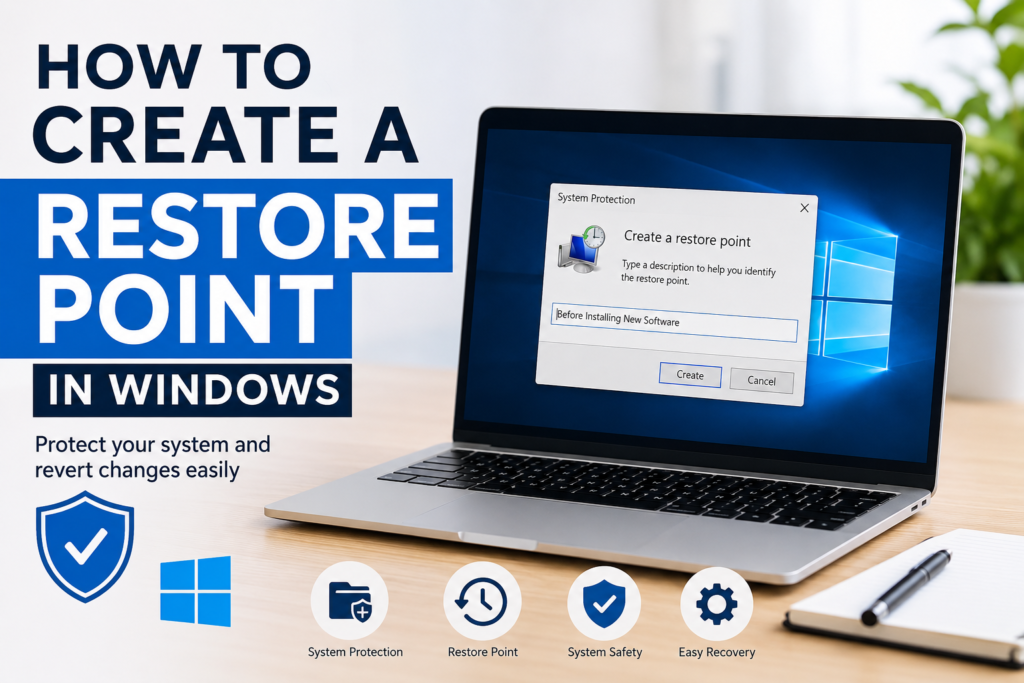
Click the Create button.
Enter a name that helps you remember why you created it.
For example
Before Windows Update
Before Installing Photoshop
Before Driver Update
After entering the name, click Create.
Windows will now begin creating the restore point.
This usually takes less than a minute.
When the process finishes, you will see a message saying that the restore point was created successfully.
That is all you need to do.
How Long Does It Take
In my experience, creating a restore point usually takes between thirty seconds and two minutes.
The exact time depends on your computer’s speed and storage device.
Computers with SSD storage usually complete the process much faster than older hard drives.
When Should You Create a Restore Point
Many people only create restore points after problems appear.
I think that is too late.
I recommend creating one before any important system change.
Some good examples include installing new software.
Updating graphics drivers.
Installing Windows updates.
Changing registry settings.
Installing antivirus software.
Testing beta applications.
Making advanced system tweaks.
Whenever you are unsure about a change, creating a restore point is a smart decision.
Does Windows Create Restore Points Automatically
Yes.
Windows sometimes creates restore points automatically before major updates or system events.
However, I never depend completely on automatic restore points because they may not always be available.
Creating one manually only takes a minute, so I always do it myself before making important changes.
How to Restore Windows Using a Restore Point
If your computer starts having problems, restoring it is simple.
Search for Create a Restore Point.
Open the System Protection window.
Click System Restore.
Choose Next.
Select the restore point you created earlier.
Click Next.
Confirm your selection.
Click Finish.
Your computer will restart and restore the previous system settings.
After the restoration finishes, Windows should return to the earlier working state.
What Happens During System Restore
Many people worry that they will lose personal files.
Fortunately, System Restore does not remove your photos, videos, music, or documents.
Instead, it restores Windows system files.
Registry settings.
Installed drivers.
System configuration.
Installed applications added after the restore point may be removed because they were not present when the restore point was created.
How Much Disk Space Should Be Reserved
Windows stores restore points on your system drive.
I usually reserve between five and ten percent of the drive space.
This allows Windows to keep several restore points without filling the storage.
If the reserved space becomes full, Windows automatically deletes the oldest restore points to make room for new ones.
Common Problems While Creating Restore Points
Sometimes Windows may fail to create restore points.
Here are some common reasons.
System Protection is disabled.
The drive has insufficient free space.
Corrupted system files.
Antivirus software interference.
Windows services required for System Restore are disabled.
Restarting the computer and checking these settings usually solves the problem.
Tips I Personally Follow
Over the years I have developed a few habits that help keep my Windows installation stable.
I create a restore point before installing any major software.
I create another one before every driver update.
I leave System Protection enabled all the time.
I never disable restore points just to save a small amount of storage.
I also keep important personal files backed up because restore points are not a replacement for regular backups.
Following these simple habits has helped me avoid many frustrating situations.
Restore Point Versus Backup
Many people think restore points and backups are the same.
Actually, they serve different purposes.
A restore point protects Windows system settings.
A backup protects your personal files.
I recommend using both.
Create restore points before changing your system and keep regular backups of important documents using cloud storage or an external drive.
This combination provides much better protection.
Is It Safe to Delete Old Restore Points
Yes.
If your storage space is running low, you can remove old restore points.
Windows also deletes older restore points automatically when the allocated storage becomes full.
Still, I prefer keeping several recent restore points available because they can be extremely useful if unexpected problems appear.
Final Thoughts
Creating a restore point in Windows is one of the simplest yet most valuable things you can do to protect your computer. I have relied on this feature many times, and it has saved me from reinstalling Windows after software issues, driver problems, and failed updates. The process takes only a minute, but the benefits can last much longer.
If you regularly install new applications, experiment with Windows settings, or update drivers, I strongly recommend making it a habit to create a restore point before every major change. It gives you a reliable safety net and makes recovering from unexpected problems much easier.
In my opinion, every Windows user should know how to create and use restore points. It is a small step that can prevent a lot of stress and save valuable time in the future.