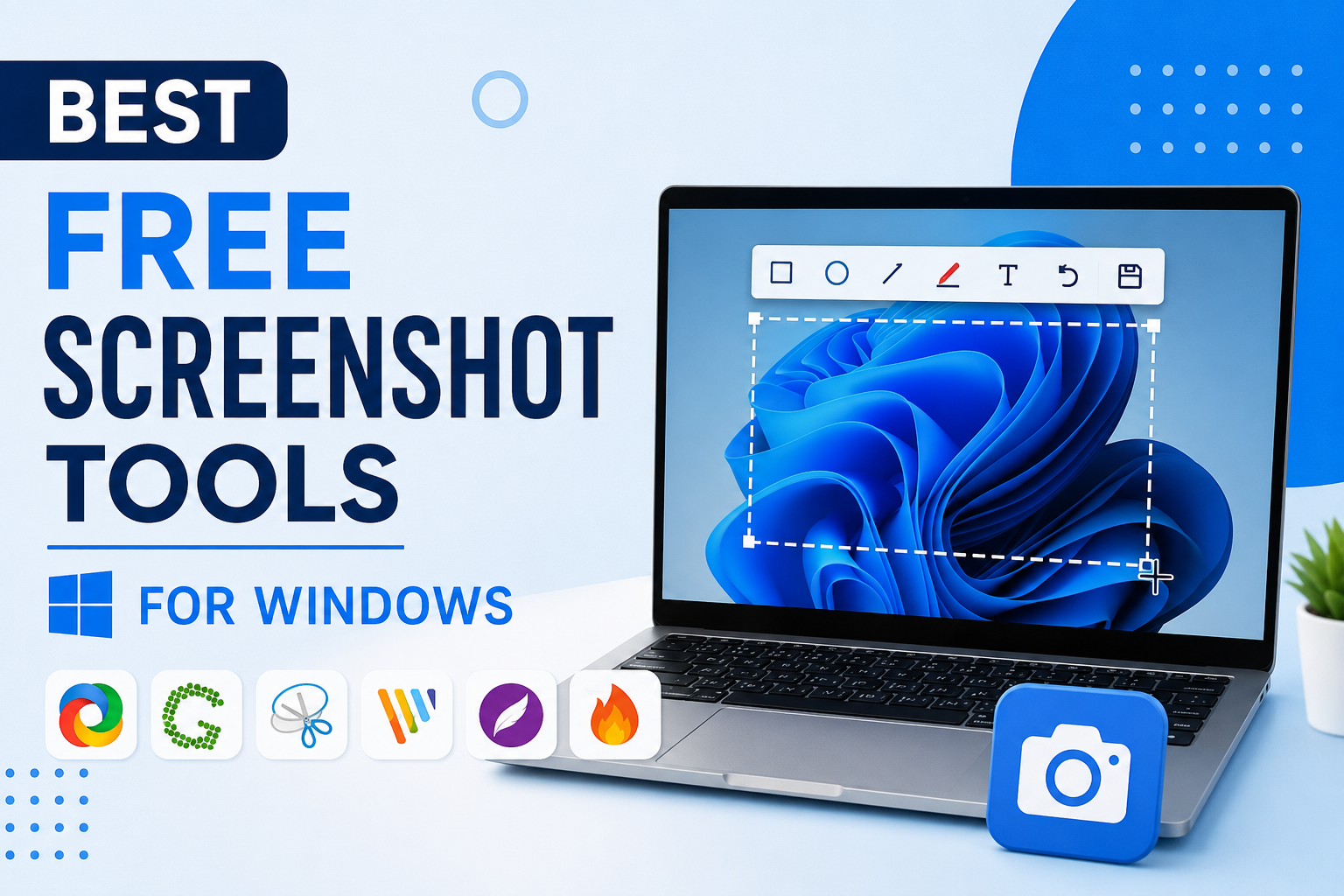
Every Windows user needs a good screenshot tool at some point. Whether I want to save an important document, create a tutorial, report a software issue, or simply capture something interesting on my screen, taking screenshots has become a part of my daily routine. While Windows already includes a basic screenshot feature, I have found that dedicated screenshot tools offer many extra features that make my work easier and more professional.
The best part is that I do not have to spend money to get a powerful screenshot application. There are many free tools available that provide excellent features for students, office workers, bloggers, gamers, and content creators. After trying several screenshot tools, I have discovered a few that stand out because of their simplicity, speed, and useful features.
In this article, I will share the best free screenshot tools for Windows that I personally believe are worth using.
Why I Prefer a Screenshot Tool Instead of the Default Windows Option
The built in screenshot option in Windows is useful for basic tasks, but it has limitations. Most of the time I need more than just capturing the screen. Sometimes I want to highlight important information, blur sensitive details, add arrows, write notes, or upload screenshots instantly.
A dedicated screenshot tool helps me do all these tasks without opening another editing program. This saves time and improves my productivity.
ShareX
Whenever someone asks me to recommend a free screenshot tool, ShareX is always my first choice. It is completely free and offers features that many paid applications do not provide.
ShareX allows me to capture the full screen, active window, selected region, scrolling pages, and even delayed screenshots. It also includes a built in image editor that lets me add arrows, rectangles, circles, numbers, and text.
One feature I really appreciate is automatic file naming and automatic uploading. If I need to share screenshots quickly with friends or clients, ShareX makes the process very simple.
Although the interface may look a little advanced at first, I found it easy to understand after using it for a few days.
Greenshot
Greenshot is another excellent screenshot application that I enjoy using. It focuses on simplicity while still offering enough features for everyday users.
Whenever I capture a screenshot, Greenshot gives me quick editing options. I can crop the image, highlight important areas, insert text, blur private information, and save the screenshot in different formats.
I especially like how lightweight it is. It starts quickly and never slows down my computer. Even on older Windows systems, Greenshot performs very well.
For students, teachers, and office employees, Greenshot is one of the easiest screenshot tools available.
Snipping Tool
The Snipping Tool comes preinstalled with Windows, and I still use it for quick screenshots when I do not need advanced editing.
The application allows me to capture rectangular areas, freeform selections, windows, or the entire screen. It also includes basic annotation tools that let me draw or highlight important content.
Microsoft has improved the Snipping Tool over the years, making it faster and more useful than before. Since it is already installed on most Windows computers, there is no need to download anything.
For basic daily use, it remains a reliable option.
PicPick
PicPick is one of my favorite screenshot tools because it combines screen capturing with useful graphic design features.
Besides taking screenshots, PicPick offers a color picker, magnifier, ruler, pixel ruler, whiteboard, protractor, and crosshair tool. These features are especially helpful for designers and developers.
The built in editor is very clean and easy to use. I can resize images, add shapes, insert text, apply effects, and highlight important areas within seconds.
If someone wants both a screenshot tool and a lightweight image editor, PicPick is an excellent choice.
Lightshot
Whenever I need to capture something and share it immediately, Lightshot is usually my first option.
The interface is incredibly simple. I only need to press the Print Screen key, select the desired area, and edit the image if necessary.
Lightshot lets me add text, arrows, lines, and highlights directly after taking the screenshot. I can also upload the image instantly and generate a sharing link.
Its speed is what impresses me the most. Everything happens within a few seconds, making it ideal for everyday work.
ScreenRec
ScreenRec is slightly different because it combines screenshot capturing with screen recording.
Sometimes I need to explain a problem to a colleague or create a short tutorial. Instead of writing a long message, I simply capture the screen or record a quick video.
ScreenRec automatically uploads my captures and provides a sharing link, making collaboration much easier.
The software also uses cloud storage, so I can access my files from different devices whenever needed.
Flameshot
Although Flameshot is more popular among Linux users, the Windows version is also impressive.
I like its modern interface and powerful annotation tools. After capturing a screenshot, I can draw arrows, circles, lines, numbers, and write text immediately.
One feature that stands out is the customizable toolbar. I can arrange the tools according to my personal workflow, making editing even faster.
For users who enjoy customization, Flameshot is definitely worth trying.
FastStone Capture Alternative
While the complete version of FastStone Capture is paid today, older free versions are still remembered by many users because of their excellent performance.
Its interface was simple, lightweight, and reliable. Many people who used it years ago still consider it one of the best screenshot utilities ever created.
If someone already has an older licensed version, it still performs exceptionally well on many Windows systems.
What Features Matter Most in a Screenshot Tool
After using different screenshot applications over the years, I have realized that some features are more important than others.
Fast screenshot capturing is essential because nobody wants to waste time opening complicated menus.
A good editing tool is equally important. Being able to add arrows, circles, highlights, and text saves a lot of effort.
Keyboard shortcuts improve workflow because screenshots can be captured instantly without interrupting work.
Automatic saving also makes a big difference. I never have to worry about forgetting where my screenshots are stored.
Cloud sharing is another useful feature, especially for remote work and online collaboration.
Which Screenshot Tool Is Best for Different Users
Students usually need something simple that helps them capture notes and assignments. Greenshot and the Snipping Tool work perfectly for this purpose.
Office workers often need annotations and quick sharing. ShareX and PicPick are excellent options because they provide professional editing features.
Content creators and bloggers benefit from ShareX because it supports advanced workflows, automatic uploads, and high quality image editing.
Designers often prefer PicPick because of its extra utilities like color picker and magnifier.
People who only need fast screenshots without learning advanced settings will probably enjoy Lightshot the most.
Tips for Taking Better Screenshots
I always try to clean my desktop before capturing screenshots because it looks more professional.
Cropping unnecessary areas keeps the image focused on important information.
Using arrows and highlights helps viewers understand exactly what I want to explain.
Saving screenshots with meaningful file names makes them much easier to find later.
Whenever I share screenshots online, I double check that personal information such as passwords, email addresses, or private documents are hidden or blurred.
Final Thoughts
Finding the right screenshot tool depends on how I use my computer every day. If I need advanced features and complete control, ShareX remains my personal favorite because it offers an incredible number of professional tools without charging anything.
If I want something lightweight and beginner friendly, Greenshot and Lightshot are fantastic choices. For users who simply need occasional screenshots, the Windows Snipping Tool is more than enough. PicPick is an excellent solution for designers, while ScreenRec is perfect for anyone who wants both screenshots and screen recording in one application.
The good news is that every tool mentioned in this article is free or offers a free version that is more than capable of handling everyday tasks. Instead of relying on basic screenshot options, I recommend trying a few of these applications and choosing the one that best matches your workflow. In my experience, using the right screenshot tool can save time, improve communication, and make daily computer tasks much more efficient.