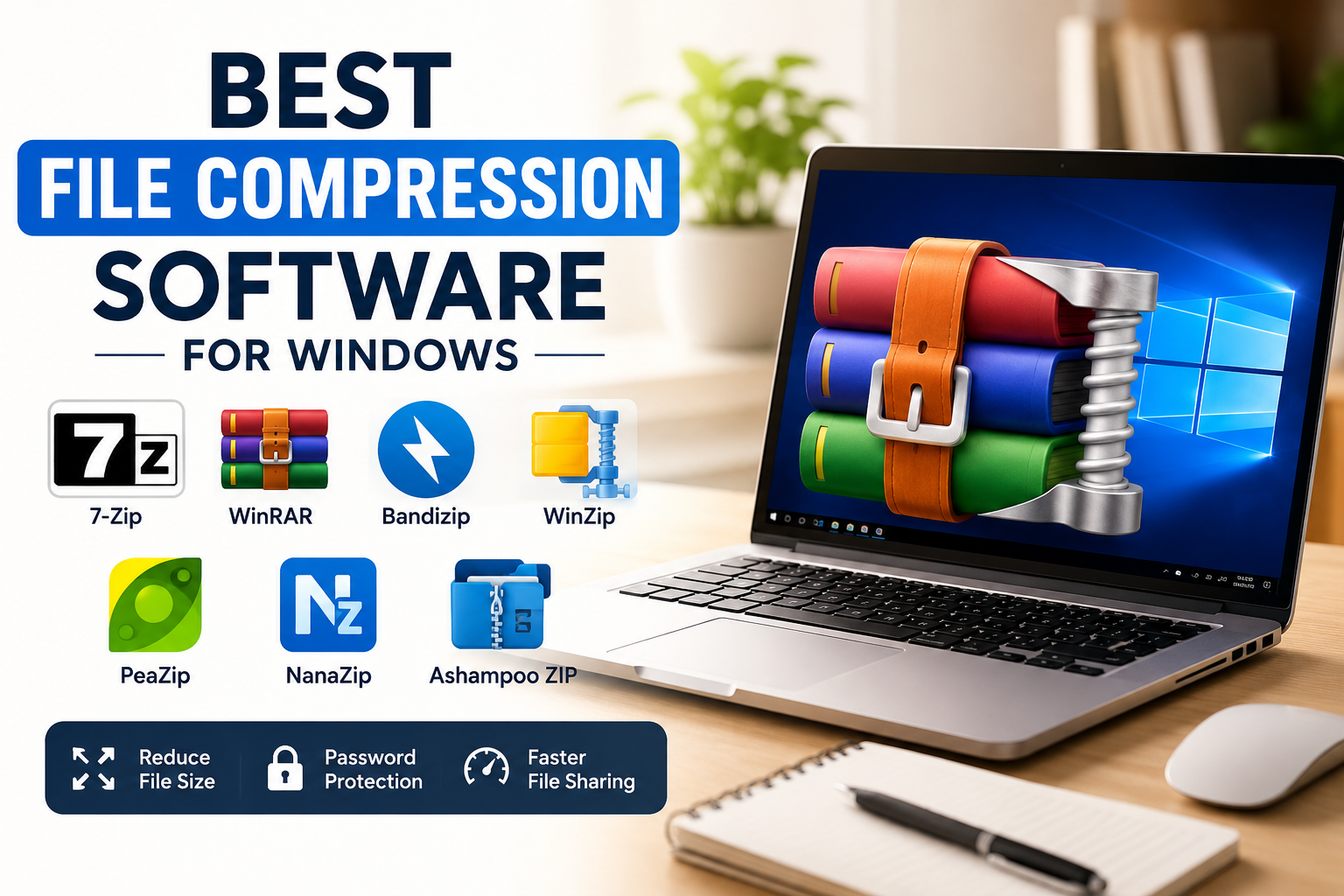
If you use a Windows computer every day, there is a good chance that you have worked with large files at some point. Whether I am sharing documents, sending photos, backing up projects, or storing videos, file size always becomes an important factor. That is why I believe file compression software is one of the most useful tools anyone can install on their computer.
A good compression tool helps reduce file size, saves storage space, and makes it easier to send files through email or cloud storage. Over the years, I have tried many different file compression programs, and I noticed that each one offers something unique. Some are simple and lightweight, while others include advanced features like encryption, password protection, and support for many file formats.
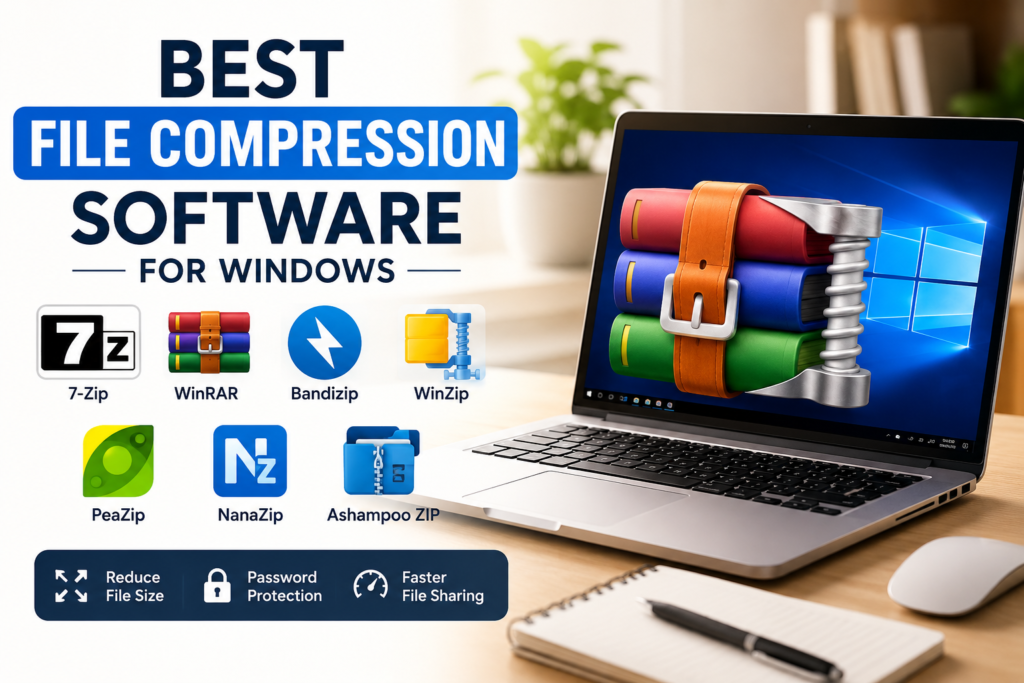
In this article, I will share the best file compression software for Windows that I personally think are worth trying. Whether you are a student, office worker, gamer, or casual computer user, there is a tool here that can make your daily tasks much easier.
Why File Compression Software Is Important
Many people think Windows already supports ZIP files, so they do not need another application. While the built in Windows feature works for basic tasks, it is quite limited. Dedicated compression software supports more formats, offers better compression rates, and includes useful features that save time.
I usually use compression software when I need to send multiple files together, archive old documents, or protect important folders with a password. It also helps me organize my files in a cleaner way.
Some benefits of using file compression software include
Saving storage space
Faster file sharing
Support for multiple archive formats
Password protection for sensitive files
Easy extraction of compressed folders
Better file organization
1. 7 Zip
Whenever someone asks me which compression software I recommend first, my answer is usually 7 Zip. It is completely free, open source, and surprisingly powerful.
The interface is simple, but do not let that fool you. It supports many archive formats including ZIP, RAR, 7Z, TAR, ISO, GZIP, and more. The 7Z format also offers excellent compression, helping reduce file size even further.
One thing I really like about 7 Zip is its speed. It compresses and extracts files quickly without using too many system resources. Even on an older computer, it performs smoothly.
If you want a reliable free solution, I think 7 Zip is one of the best choices available.
2. WinRAR
WinRAR has been around for many years, and it continues to be one of the most popular compression tools for Windows.
Although it is technically paid software, many people use the free trial without major limitations. One of the reasons I still like WinRAR is its excellent support for RAR files, which are still commonly used for downloads and backups.
WinRAR also includes useful features like archive repair, recovery records, password protection, and archive splitting. These features become very helpful when working with large files.
Its interface may look old compared to modern applications, but it remains fast, stable, and dependable.
3. WinZip
WinZip is another famous name in file compression. It has evolved from a simple ZIP utility into a complete file management solution.
Besides compressing and extracting files, WinZip also connects with cloud storage services, making it easier to upload and share compressed files directly.
I think WinZip is a good choice for business users who need advanced file management and secure sharing features.
Since it is premium software, it may not be the first option for everyone, but its extra features make it valuable for professional users.
4. PeaZip
PeaZip is one of the most underrated file compression tools that I have used.
It is free, open source, and supports more than 200 archive formats. That alone makes it impressive.
The interface is clean and easy to understand. It also includes useful security options like password protection, encrypted archives, secure file deletion, and checksum verification.
If you are looking for a free alternative to premium software, I think PeaZip deserves your attention.
5. Bandizip
Bandizip is another excellent compression program that combines speed with simplicity.
The software supports all popular archive formats and offers fast extraction speeds. I especially like its modern interface because everything is organized clearly.
Bandizip also allows users to preview archive contents before extracting them, which saves time when searching for specific files.
The free version is enough for most users, while the paid version unlocks additional advanced features.
6. NanaZip
NanaZip is a relatively newer compression tool that has become popular among Windows 11 users.
It is based on the 7 Zip project but includes a more modern design that fits perfectly with the Windows interface.
Performance is excellent, and it supports almost every archive format that I normally use.
If you like modern looking applications, NanaZip is definitely worth considering.
7. Ashampoo ZIP Free
Ashampoo ZIP Free offers a user friendly experience that is perfect for beginners.
The software supports many common archive formats and provides an attractive interface that is easy to navigate.
Creating ZIP archives takes only a few clicks, and extracting files is equally simple.
I believe this software is ideal for users who prefer a clean and visually appealing application.
Features I Always Look For
Whenever I install a compression program, there are certain features I always check before deciding whether to keep it.
Support for multiple archive formats
Fast compression speed
High extraction performance
Password protection
AES encryption
Easy user interface
Low system resource usage
Regular software updates
Context menu integration
Batch compression support
These features make everyday work much easier and improve the overall experience.
Which Software Is Best for Beginners
If someone has never used file compression software before, I usually recommend either 7 Zip or PeaZip.
Both programs are free, lightweight, and easy to learn. They provide all the essential features without overwhelming new users.
Even after years of using different compression tools, I still find myself returning to these applications because they simply work well.
Tips for Better File Compression
After using compression software for many years, I have learned a few tricks that improve results.
Compress similar file types together.
Remove duplicate files before creating archives.
Choose the highest compression level when storage space matters more than speed.
Use passwords for confidential documents.
Split very large archives into smaller parts when sharing online.
Keep backup copies of important compressed files.
These simple habits help save space and make file management much easier.
Free vs Paid Compression Software
Many users ask whether paid compression software is really necessary.
In my opinion, most home users will be perfectly happy with free programs like 7 Zip, PeaZip, or NanaZip.
Paid software like WinRAR and WinZip becomes more useful if you regularly work with large archives, business documents, or need advanced recovery and cloud integration features.
For normal everyday use, free software usually provides everything you need.
My Personal Recommendation
After trying many compression programs over the years, I still find myself using 7 Zip most often. It is lightweight, extremely reliable, completely free, and supports almost every archive format I need.
If I need additional security or advanced archive management, I sometimes switch to WinRAR. For users who prefer a modern interface, Bandizip and NanaZip are also excellent choices.
The good news is that all of these programs perform well, so choosing one mostly depends on your personal preferences.
Final Thoughts
File compression software may not seem exciting at first, but it can make a big difference in your daily computer experience. Whether you want to save storage space, share files faster, organize documents, or protect important data, the right compression tool can handle the job with ease.
From my experience, 7 Zip remains the best overall free option because it offers outstanding performance without costing anything. WinRAR continues to be a trusted favorite for advanced users, while PeaZip, Bandizip, NanaZip, and Ashampoo ZIP Free each bring their own strengths to the table.
I always recommend trying a few different options before choosing one. Every user has different needs, and the best software is the one that fits your workflow perfectly. Once you start using a good file compression tool, managing files on your Windows computer becomes faster, easier, and much more organized.